
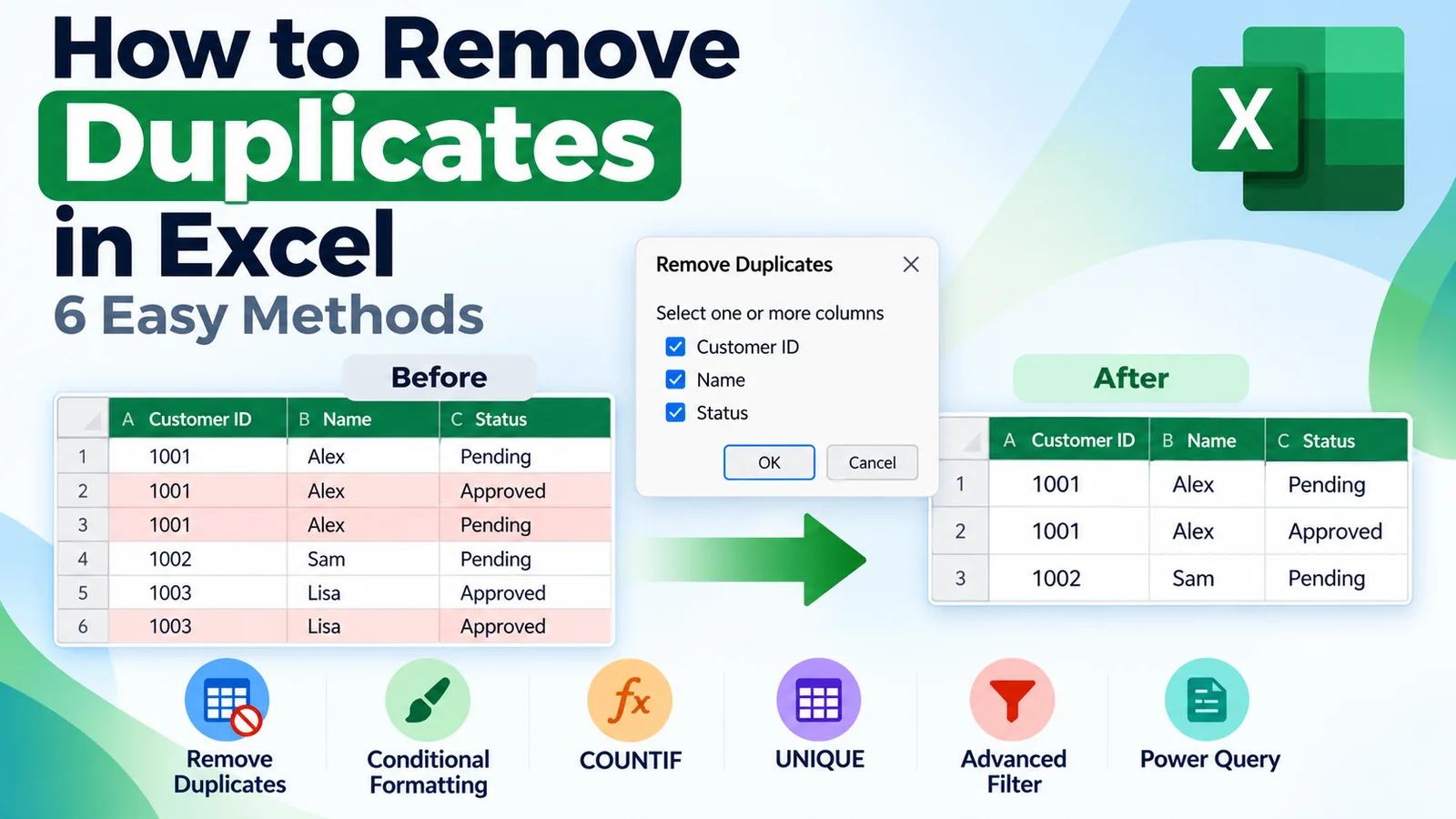
Learning how to remove duplicates in Excel is essential when you work with customer lists, project trackers, reports, survey results, inventories or other datasets that may contain repeated records.
Fortunately, Excel provides several ways to handle duplicate data. You can permanently delete duplicate rows, highlight them for review, flag them with a formula, create a separate list of unique values, filter unique records or build a repeatable data-cleaning process with Power Query.
Therefore, the best method depends on what you want to accomplish.
Find → Review → Remove, Flag, Filter or Extract → Validate
This guide explains six practical methods to remove duplicates in Excel and shows when to use each one.
Quick Answer: How to Remove Duplicates in Excel
For the fastest method:
- Select your dataset.
- Go to Data.
- Select Remove Duplicates.
- Choose the columns Excel should use to identify duplicates.
- Select OK.
- Review the message showing how many duplicate values were removed.
Excel keeps the first occurrence and removes subsequent records that match according to the columns you selected.
Because this method changes your data, review the duplicates first or keep a copy of the original dataset before deleting records.
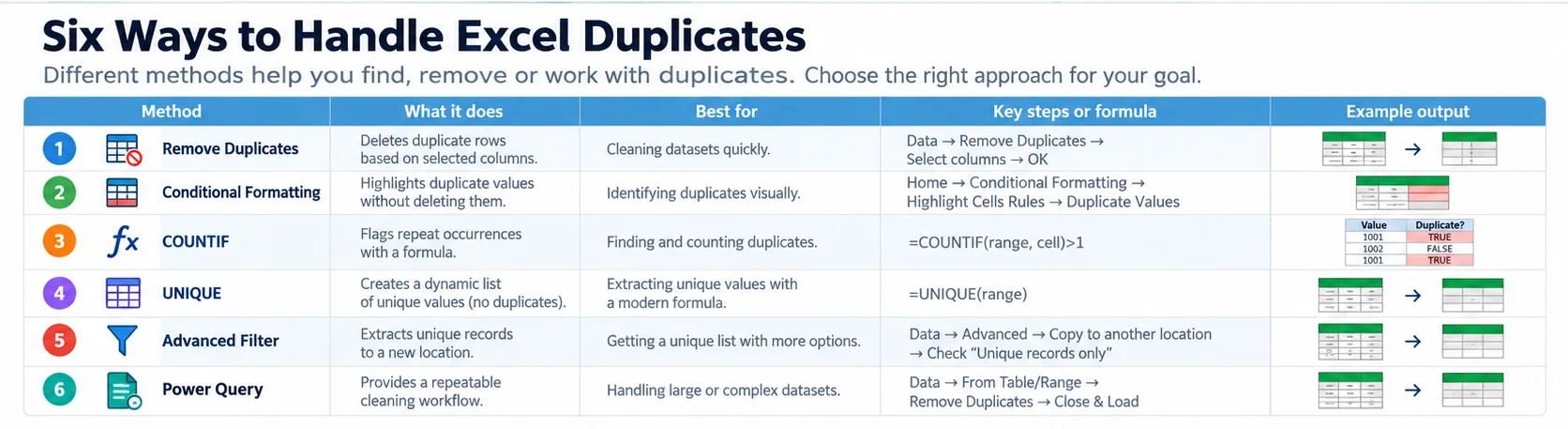
6 Ways to Remove or Find Duplicates in Excel
| Method | Best For | Changes Source Data? | Dynamic? |
|---|---|---|---|
| Remove Duplicates | Fast permanent cleanup | Yes | No |
| Conditional Formatting | Visually identifying duplicates | No | Formatting updates with the range |
| COUNTIF | Flagging or counting repeated values | No | Yes |
| UNIQUE | Creating a separate unique list | No | Yes |
| Advanced Filter | Filtering or copying unique records | No | No |
| Power Query | Repeatable data-cleaning workflows | Transforms query output | Refreshable |
The key distinction is that not every method actually deletes duplicates.
Remove Duplicates permanently changes the selected dataset, while methods such as Conditional Formatting, COUNTIF and UNIQUE let you analyze duplicates without immediately deleting the original data.
Method 1: Remove Duplicates in Excel With the Built-In Tool
The built-in Remove Duplicates command is usually the fastest option when you know that duplicate records should be permanently removed.
Microsoft places the command under:
Data → Data Tools → Remove Duplicates
How to Use Remove Duplicates Step by Step
- Select a cell inside your dataset or select the relevant range.
- Open the Data tab.
- Select Remove Duplicates.
- Confirm whether your data has headers if Excel asks.
- Select the columns that should determine whether a row is a duplicate.
- Select OK.
- Review Excel’s results message.
Afterward, Excel reports how many duplicate values were removed and how many unique values remain.
What Happens When Excel Removes Duplicates?
When duplicate records are identified, Excel keeps the first occurrence and deletes later matching records.
For this reason, understanding which occurrence Excel retains is important.
Suppose your data contains:
| Customer ID | Name | City |
|---|---|---|
| 1001 | Alex | London |
| 1002 | Sam | Paris |
| 1001 | Alex | London |
If all three columns are used to identify duplicates, the second occurrence of the 1001 / Alex / London record can be removed while the first remains.
How Excel Determines Which Rows Are Duplicates
The most important part of the Remove Duplicates dialog is the column selection.
In other words, the selected columns become the comparison key.
If you select:
- Customer ID
- Name
- City
Excel evaluates those selected columns together when determining which records are duplicates.
For example, if you select only Customer ID, two records with the same customer ID can be considered duplicates even if information in other columns differs.
Therefore, do not click Remove Duplicates automatically without first deciding what a duplicate actually means in your dataset.
Worked Example: Duplicate Customer IDs vs Duplicate Entire Rows
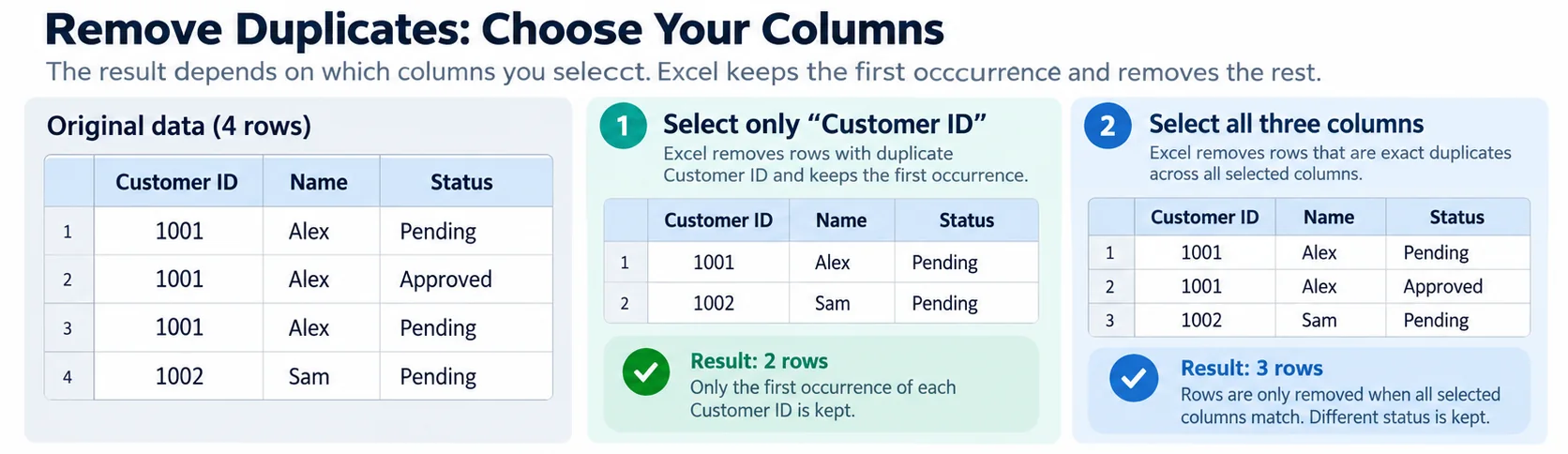
Consider the following sample customer records. Two rows share Customer ID 1001 but have different statuses, while another row repeats the first record exactly. The result depends on the comparison columns selected.
| Customer ID | Name | Status |
|---|---|---|
| 1001 | Alex | Pending |
| 1001 | Alex | Approved |
| 1001 | Alex | Pending |
| 1002 | Sam | Pending |
After selecting Customer ID only: Excel retains the first 1001 (Pending) row and the 1002 row, but the Approved record is lost. After selecting all three columns: only the exact repeated 1001 / Alex / Pending row is removed, leaving three distinct records. These outcomes apply to the sample order shown.
This matters for customer and transaction records: too few comparison columns can discard legitimate data. Microsoft confirms that the checked columns define the matching key and that the first matching occurrence is retained. See the official Remove Duplicates guide.
Remove Duplicates Based on One Column
In some cases, you want uniqueness to be determined by only one field.
For example, imagine a customer table containing:
- Customer ID
- Name
- Region
- Last Contact Date
If Customer ID is supposed to uniquely identify each customer, you might use only that column as the duplicate key.
In the Remove Duplicates dialog:
- First, click Unselect All.
- Next, tick the Customer ID checkbox.
- Select OK.
Consequently, Excel evaluates duplicate records according to the Customer ID column.
Remember that when Excel identifies a duplicate based on your selected column, the entire duplicate row is removed from the selected table or range—not just the value in that one column.
Remove Duplicates Based on Multiple Columns
By comparison, multiple columns can provide a safer duplicate key when one column alone is not unique.
For example:
First Name + Last Name
may still produce legitimate repeated names.
A stronger comparison might be:
First Name + Last Name + Email Address
The correct combination depends on the data.
Before removing anything, ask:
Which fields together define a genuinely duplicate record?
Always Review Data Before Removing Duplicates
Unlike highlighting or filtering, the built-in tool permanently removes duplicate records from the selected range or table.
For important datasets, use a simple safety process:
Backup → Identify → Review → Remove → Validate
You can:
- Copy the original data to another worksheet
- Save a backup of the workbook
- Highlight duplicates first
- Filter unique values first
Microsoft also recommends reviewing unique or duplicate values before permanently removing records.
For Microsoft’s instructions, see the Microsoft guide to filtering unique values and removing duplicates in Excel.
Method 2: Find Duplicates in Excel With Conditional Formatting
Alternatively, if you are not ready to delete anything, Conditional Formatting in Excel is one of the easiest ways to visually identify duplicate values.
Importantly, this method changes the appearance of matching cells rather than deleting them.
How to Highlight Duplicate Values
- Select the range you want to check.
- Go to Home.
- Open Conditional Formatting.
- Expand Highlight Cells Rules.
- Choose Duplicate Values.
- Choose the formatting you want.
- Select OK.
With these settings, Excel highlights duplicate values in the selected range.
Therefore, you can investigate the records before deciding what should happen to them.
When Conditional Formatting Is Better Than Remove Duplicates
Conditional Formatting is useful when:
- You need to review duplicates manually
- Some repeated values may be legitimate
- You do not want to modify the source data
- A visual quality check is needed
- The cause of repeated values needs investigation
Microsoft supports highlighting duplicate values through Home → Conditional Formatting → Highlight Cells Rules → Duplicate Values.
See the Microsoft Conditional Formatting documentation for additional formatting options.
Method 3: Find Duplicates in Excel With COUNTIF
However, sometimes you need more control than simple highlighting provides.
For a formula-based approach, the COUNTIF function can count how many times a value occurs within a range.
Suppose customer IDs are stored in cells A2:A100.
You can use:
=COUNTIF($A$2:$A$100,A2)If the result is:
- 1 — the value occurs once
- 2 — the value occurs twice
- 3 — the value occurs three times
and so on.
Flag Duplicate Values With COUNTIF
You can also create a clearer label:
=IF(COUNTIF($A$2:$A$100,A2)>1,"Duplicate","Unique")This returns Duplicate whenever the value occurs more than once in the selected range.
This approach is useful when you want to:
- Keep the original data
- Create a duplicate-status column
- Filter duplicate records later
- Count repeated values
- Investigate duplicates before deleting anything
Highlight Duplicates With a COUNTIF Formula
Furthermore, COUNTIF can be combined with Conditional Formatting.
For example, Microsoft documents a rule similar to:
=COUNTIF($A$2:$A$400,A2)>1When used as a Conditional Formatting formula, the rule can highlight values that occur more than once.
Consequently, you gain more flexibility than the basic Duplicate Values rule when you need a custom range or logic.
Method 4: Create a Unique List With the UNIQUE Function
If you use a version of Excel that supports dynamic arrays, the UNIQUE function provides an elegant way to create a separate list containing unique values.
Microsoft lists UNIQUE for Excel in Microsoft 365, Excel 2024 and Excel 2021 (including supported Mac editions). It is not available in perpetual Excel 2019 or Excel 2016. See the official UNIQUE function reference. On older versions, consider Remove Duplicates, Advanced Filter or Power Query.
The basic syntax is:
=UNIQUE(array)For example:
=UNIQUE(A2:A100)returns the unique values from A2:A100.
The result appears separately from the original data.
UNIQUE Does Not Delete Your Original Duplicates
This distinction is essential.
The UNIQUE function does not remove records from your source dataset.
Instead, it returns a new array containing unique values.
That makes UNIQUE useful for:
- Creating unique customer lists
- Building dynamic category lists
- Creating reporting inputs
- Generating distinct product lists
- Preparing values for dashboards
UNIQUE Function Syntax
The full syntax is:
=UNIQUE(array,[by_col],[exactly_once])First, the initial argument specifies the source array or range.
In addition, the optional arguments allow more advanced control over how Excel evaluates uniqueness.
Return Values That Occur Exactly Once
There is an important difference between:
unique/distinct values
and:
values that appear exactly once.
For example, imagine this list:
Apple
Apple
Banana
Orange
Orange
A normal UNIQUE result would include:
Apple
Banana
Orange
But if you use the optional exactly_once argument, you can return only values that occur exactly once.
For example:
=UNIQUE(A2:A6,,TRUE)would return only:
BananaTherefore, this option is useful when your objective is to identify records that appear only once rather than simply creating a distinct list.
The Microsoft UNIQUE function documentation explains its arguments and supported Excel versions.
UNIQUE vs Remove Duplicates in Excel
These two methods solve different problems.
| Remove Duplicates | UNIQUE |
|---|---|
| Changes the selected source data | Leaves the source data intact |
| Removes repeated records | Returns a separate unique list |
| One-time operation | Formula-based |
| Useful for data cleanup | Useful for dynamic reporting and analysis |
For permanent dataset cleanup, Remove Duplicates may be appropriate.
If you need a separate list that can update with the underlying data, UNIQUE is often more useful.
Method 5: Filter Unique Records With Advanced Filter
Alternatively, Excel’s Advanced Filter provides a way to work with unique records without immediately deleting duplicates.
You can either:
- Filter the list in place
- Copy unique records to another location
How to Use Advanced Filter for Unique Values
- Select the range or click inside the relevant table.
- Go to Data.
- Select Advanced in the Sort & Filter group.
- Choose whether to filter the list in place or copy the result elsewhere.
- Select Unique records only.
- Select OK.
If you choose to copy the result, Excel creates a separate set of unique records while leaving the original data unchanged.
Advanced Filter vs Remove Duplicates
The distinction is straightforward:
Advanced Filter → displays or copies unique records.
Remove Duplicates → permanently deletes duplicate values from the selected dataset.
Therefore, Advanced Filter can be useful when you want to inspect or extract unique data before making permanent changes.
Method 6: Remove Duplicates With Power Query
For repeatable data-cleaning workflows, Power Query is often the strongest option. Our guide to importing and cleaning data with Power Query explains the broader workflow and how to select comparison columns.
Instead of manually cleaning the same type of imported data each time, you can define transformation steps and then refresh the query when the source changes.
Why Use Power Query for Duplicates?
Power Query is particularly useful when:
- You regularly import new data
- The same cleanup steps must be repeated
- You work with larger structured datasets
- Duplicate removal is one step in a broader transformation process
- You need a more repeatable workflow
How to Remove Duplicate Rows in Power Query
Once your data is available in Power Query Editor:
- Select the column that should determine duplicates.
- To use multiple columns, select the required column headers.
- Go to Home.
- Select Remove Rows.
- Select Remove Duplicates.
As with Excel’s built-in tool, the selected columns determine how Power Query compares rows for duplicate removal.
Microsoft also provides a Keep Duplicates command when you want to isolate repeated records for investigation instead of removing them.
See the Microsoft Power Query duplicate-row guide for the current workflow.
Power Query vs Remove Duplicates
| Remove Duplicates Command | Power Query |
|---|---|
| Quick manual cleanup | Repeatable transformation workflow |
| Changes selected worksheet data | Transforms query output |
| Simple to use | Better suited to multi-step data preparation |
| Good for occasional tasks | Good for recurring imports and cleaning |
| Manual repetition required | Transformation can be refreshed |
How to Choose the Right Excel Duplicate Method
Instead of asking only how to remove duplicates, first ask what result you actually need.
I Want to Permanently Delete Duplicate Rows
Use Remove Duplicates.
I Want to See Duplicates Before Deleting Them
To inspect the values first, choose Conditional Formatting.
I Want to Flag Duplicate Records With a Formula
Use COUNTIF.
I Want a Dynamic List of Unique Values
For a dynamic list, choose UNIQUE in a supported Excel version.
I Want to Extract Unique Records Without Deleting the Original Data
Alternatively, extract distinct records with Advanced Filter.
I Regularly Clean Imported Data
Consider Power Query.
How to Remove Duplicates but Keep the First Record
In fact, this is the normal behavior of Excel’s Remove Duplicates feature.
As a result, Excel keeps the first occurrence and removes subsequent matching records according to your selected columns.
That means the order of your dataset can matter.
Important Power Query distinction: when you must preserve the latest record per key, do not assume a prior sort always guarantees which row Power Query keeps. Make the selection deterministic using a defined date/tie-breaker rule and validate the outcome before loading the cleaned result.
How to Keep the Latest Record When Removing Duplicates
For example, suppose your data contains multiple records for the same customer, but you want to retain the most recent one.
For example:
| Customer ID | Status | Updated |
|---|---|---|
| 1001 | Pending | January 5 |
| 1001 | Approved | February 20 |
If you simply remove duplicates by Customer ID without considering the order, you may keep the wrong record.
A practical approach for a simple dataset is:
- Make a backup.
- Sort the date column from newest to oldest.
- Confirm that the newest record for each ID appears first.
- Use Remove Duplicates based on the Customer ID.
- Validate the results.
Because Remove Duplicates keeps the first occurrence, sorting first can help determine which record remains.
In addition, for repeatable or business-critical workflows, Power Query may provide a more controlled data-transformation process.
How to Find Duplicate Rows Instead of Duplicate Cells
Importantly, a duplicate cell and a duplicate row are not always the same thing.
Imagine this dataset:
| Name | Department |
|---|---|
| Alex | Finance |
| Alex | Marketing |
For example, the name Alex appears twice, but the rows are not identical.
If Name + Department defines the record, these are two legitimate records.
This is why duplicate removal should be based on your data model rather than simply on repeated text.
Duplicate Values vs Duplicate Records
It helps to distinguish two concepts:
Duplicate value: a value occurs more than once in a field.
Duplicate record: a combination of fields identifies the same logical record more than once.
For example, two customers might legitimately share the same last name.
Consequently, removing one simply because the name is repeated would create a data-quality problem rather than solve one.
Why Excel May Appear to Miss Some Duplicates
However, data that looks identical to a person is not always identical from Excel’s perspective.
Common causes include:
- Leading or trailing spaces
- Hidden characters
- Different number or date representations
- Inconsistent data entry
- Values stored differently
- Different combinations of selected comparison columns
Therefore, before assuming the duplicate tool is broken, inspect the underlying data and the columns selected for comparison.
Clean Spaces Before Removing Duplicates
Extra spaces can create data-quality problems.
For example, the TRIM function can help clean unnecessary spaces in text.
For example:
=TRIM(A2)You can apply the formula to a helper column, review the results and then use the cleaned data where appropriate.
Remember that data cleaning can involve more than duplicates. Standardizing text, dates, identifiers and missing values may be necessary before deduplication.
Remove Duplicates From an Excel Table
In addition, the Remove Duplicates command can be used when your data is formatted as an Excel table.
Click inside the table and use the relevant Remove Duplicates command, then select the columns that should determine uniqueness.
Excel removes duplicate records from the table according to those selected columns.
Can You Undo Remove Duplicates in Excel?
Immediately after removing duplicates, you can normally use Undo or Ctrl+Z to reverse the action.
However, Undo should not replace a proper backup strategy for important data.
Therefore, for business-critical datasets, keep an original copy before making destructive changes.
Problems When Remove Duplicates Does Not Work
Problem 1: The Wrong Records Were Removed
You may have selected the wrong comparison columns.
Restore the data if possible and decide which fields actually define a duplicate.
Problem 2: Records Look Identical but Are Not Detected as Expected
Next, check for spaces, hidden characters, formatting or other data inconsistencies.
Problem 3: You Need to Keep a Specific Record
Importantly, remember that Remove Duplicates keeps the first occurrence.
Sort or otherwise prepare the dataset carefully before deduplication when the retained record matters.
Problem 4: You Need to Repeat the Cleanup Every Week
A manual process may not be the best design.
For a repeatable transformation workflow, consider Power Query.
Problem 5: Your Data Contains Outlines or Subtotals
Microsoft notes that duplicate values cannot be removed from outlined or subtotaled data until the outlines and subtotals have been removed.
Best Practices Before You Remove Duplicates in Excel
A reliable duplicate-removal workflow should protect data quality.
Use this sequence:
Define → Backup → Inspect → Clean → Deduplicate → Validate
1. Define What “Duplicate” Means
Identify the column or combination of columns that defines a unique record.
2. Keep the Original Data
Make a copy before performing permanent cleanup.
3. Inspect Duplicates
Use Conditional Formatting, filtering or formulas if you need to understand the data first.
4. Clean Inconsistent Data
Review spaces, text formats, dates and identifiers.
5. Choose the Right Method
Use permanent removal only when permanent removal is actually the goal.
6. Validate the Result
After cleaning, verify:
- Row counts
- Unique identifiers
- Important totals
- Expected records
- Any downstream formulas or reports
Common Mistakes When Removing Duplicates in Excel
Deleting Before Reviewing
Repeated values are not always errors.
Selecting the Wrong Columns
Your selected columns determine how Excel identifies duplicate records.
Assuming Repeated Names Mean Duplicate People
Names alone may not uniquely identify a person or customer.
Confusing UNIQUE With Remove Duplicates
UNIQUE returns a separate list. It does not delete duplicate records from the source.
Ignoring Record Order
If you need to keep a particular occurrence, remember that Remove Duplicates retains the first matching record.
Cleaning Data Manually Every Time
If the same cleanup process repeats frequently, Power Query may be more efficient and consistent.
Working Without a Backup
Permanent data-cleaning operations should be performed carefully, especially on important business data.
Duplicate removal is often only one step in data preparation. After defining the record key, validate the cleaned result, then explore our Excel formulas and functions guide for further validation and calculations.
Remove Duplicates as Part of Excel Data Cleaning
Duplicate removal is only one part of good spreadsheet management.
A broader data-cleaning workflow may include:
- Removing unnecessary duplicate records
- Standardizing text
- Correcting inconsistent dates
- Handling missing values
- Validating identifiers
- Checking formulas
- Reviewing data types
If you are still developing your spreadsheet skills, start with our Excel for Beginners guide.
For a broader set of practical spreadsheet skills, see our How to Use Excel guide.
Remove Duplicates From Excel Templates
Duplicate data can also appear in reusable trackers and templates as information is copied, imported or entered over time.
Before cleaning a template-based workbook, understand which fields are intended to be unique.
For example, a project tracker may legitimately contain the same employee name across multiple tasks, while the task ID itself should be unique.
Our Excel Templates guide explains how to create, customize and reuse spreadsheet templates more effectively.
Duplicates and Excel Drop-Down Lists
When preparing source values for a drop-down list, you may want a clean set of unique choices rather than repeated entries.
Depending on your Excel version and workbook design, UNIQUE can be particularly useful for generating a dynamic distinct list.
Our Excel Drop-Down List guide explains how to create and manage drop-down lists in more detail.
Frequently Asked Questions About Removing Duplicates in Excel
What Is the Fastest Way to Remove Duplicates in Excel?
Select the relevant data, go to Data → Remove Duplicates, choose the columns Excel should use for comparison and select OK. Review your data first because this method permanently removes duplicate records from the selected range or table.
Does Excel Remove the First or Second Duplicate?
Excel’s Remove Duplicates feature keeps the first occurrence and removes subsequent records that match according to the selected columns.
How Do I Find Duplicates Without Deleting Them?
Use Conditional Formatting to highlight duplicate values, or use a COUNTIF formula to flag values that occur more than once.
How Do I Highlight Duplicates in Excel?
Select the range and go to Home → Conditional Formatting → Highlight Cells Rules → Duplicate Values, then choose the formatting you want.
What Formula Can Find Duplicates in Excel?
COUNTIF is commonly used. For example:
=COUNTIF($A$2:$A$100,A2)A result greater than 1 indicates that the value appears multiple times within that range.
How Do I Create a List Without Duplicates?
In Excel versions that support the UNIQUE function, use a formula such as:
=UNIQUE(A2:A100)This creates a separate unique list without deleting the original data.
Does UNIQUE Remove Duplicates From the Original Data?
No. UNIQUE returns a separate array of unique values or rows. The original source data remains unchanged.
Can Excel Remove Duplicates Based on Multiple Columns?
Yes. In the Remove Duplicates dialog, select multiple columns. Excel uses the combined values from those columns as the comparison key.
How Do I Remove Duplicates but Keep the Latest Record?
For a simple dataset, you can make a backup, sort the relevant date or timestamp so the newest records appear first, and then remove duplicates based on the identifier. Because Excel keeps the first occurrence, the ordering affects which record remains. Validate the result carefully.
Should I Use Remove Duplicates or Power Query?
Use Remove Duplicates for straightforward one-time cleanup. Power Query is often more suitable when duplicate removal is part of a repeatable data-import and transformation process.
Can Power Query Find Duplicates Instead of Removing Them?
Yes. Power Query includes options to remove duplicate rows or keep duplicate rows based on the selected columns.
Why Is Excel Not Finding My Duplicates?
Check the columns used for comparison and inspect the data for spaces, hidden characters, formatting differences or other inconsistencies. Values that appear similar visually may not always behave as expected during comparison.
Can I Undo Remove Duplicates?
You can normally use Undo immediately after the operation. For important datasets, however, keep a backup rather than relying only on Undo.
Conclusion: Choose the Right Way to Remove Duplicates in Excel
There is no single best way to remove duplicates in Excel because different methods solve different problems.
Quick permanent cleanup, use Remove Duplicates.
Inspect repeated values first, use Conditional Formatting.
Formula-based duplicate flag, use COUNTIF.
Dynamic separate list of unique values, use UNIQUE.
Filter or copy unique records without deleting the source, use Advanced Filter.
If duplicate removal is part of a recurring data-cleaning workflow, consider Power Query.
The most important step comes before any of these tools:
Define what a duplicate actually means in your dataset.
Then use:
Define → Backup → Inspect → Clean → Deduplicate → Validate
That approach helps you remove genuine duplicate records without accidentally deleting legitimate data.
Continue Learning
Continue building practical Excel skills through the Microsoft Excel Learning Hub, the Excel Formulas & Functions guide, and our PivotTable step-by-step guide.
Comments are closed.