
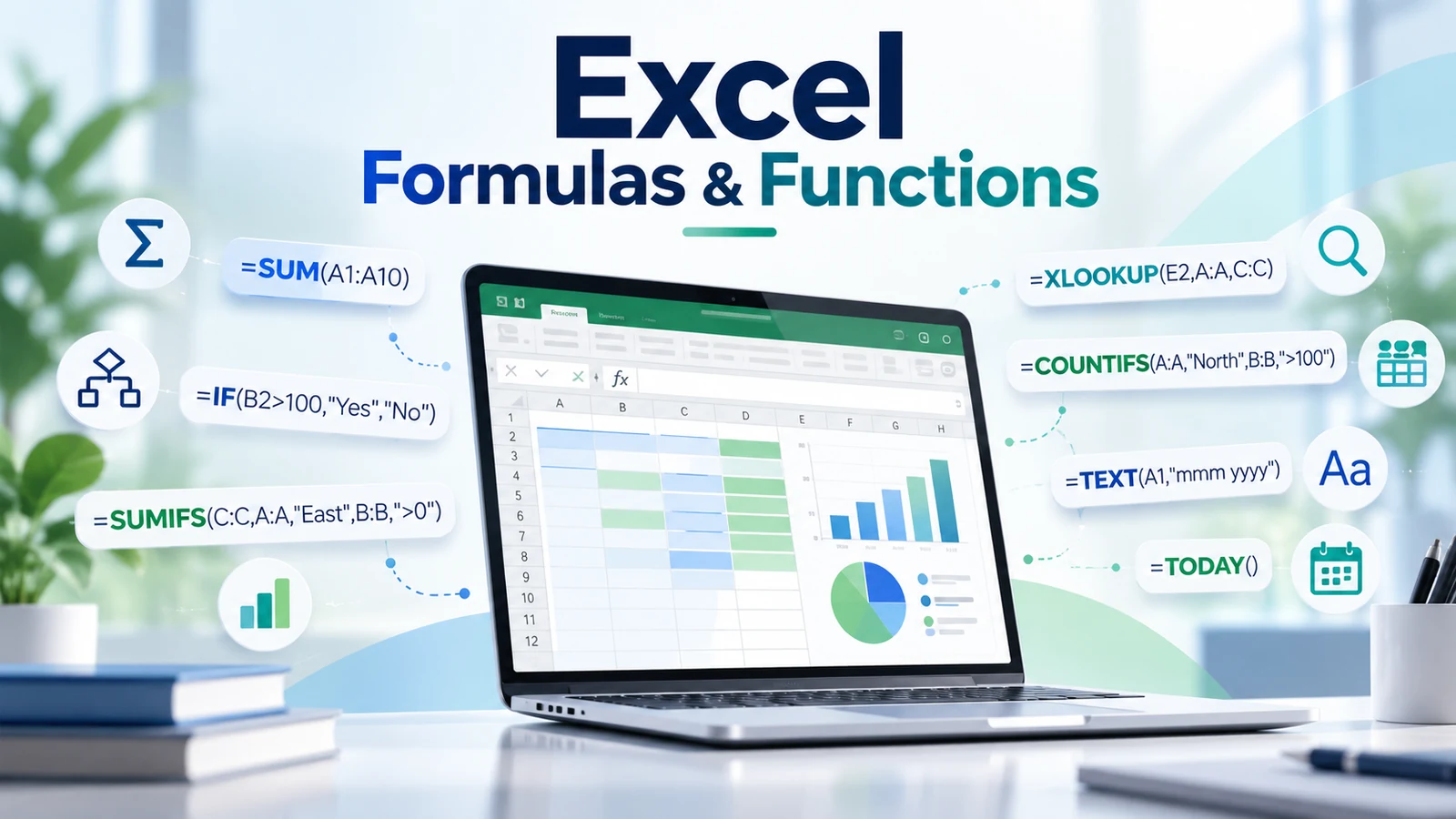
Excel formulas and functions turn a spreadsheet from a static table into a working model. They can calculate totals, test conditions, retrieve information, clean text, work with dates, summarize data, and automate repetitive decisions inside a workbook.
If you are still learning the basics, start with our Excel for Beginners guide. If you already know how cells, rows, columns, and worksheets work, this guide will help you build a practical formula toolkit you can use in everyday work.
Microsoft’s official overview of formulas in Excel confirms the core rule: an Excel formula starts with an equal sign. From there, formulas can combine cell references, operators, constants, and built-in functions.
Excel Formulas and Functions: Formula vs Function
An Excel formula is an expression you create to calculate a result. A function is a predefined formula built into Excel.
For example:
=A2+B2This is a formula that adds the values in cells A2 and B2.
=SUM(A2:B2)This is also a formula, but it uses the built-in SUM function.
In practice, most useful Excel models combine formulas, functions, references, and logic together.
The Anatomy of an Excel Formula
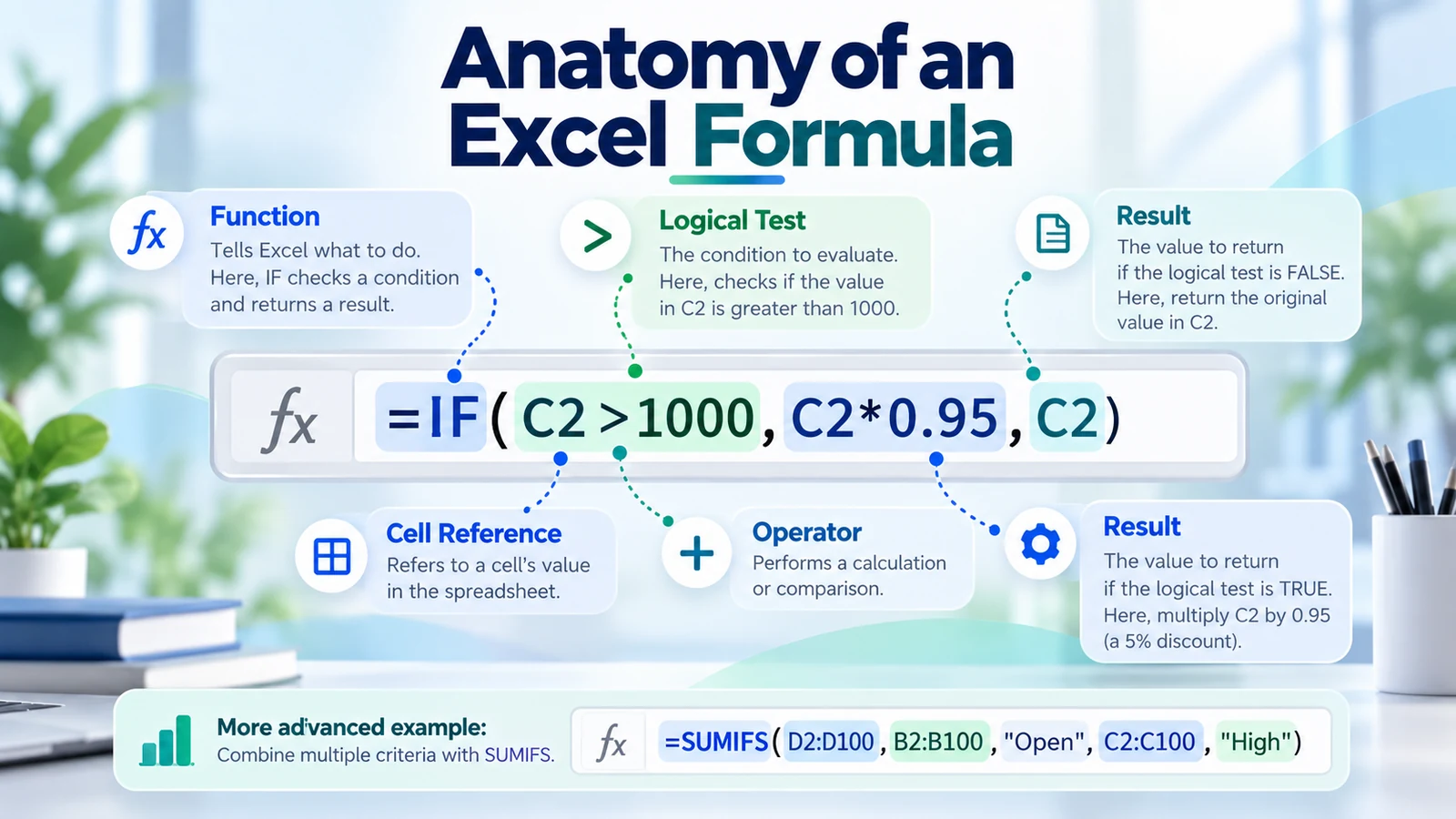
A formula can contain four main elements:
- Functions — such as SUM, IF, or XLOOKUP.
- Cell references — such as A2 or D5:D20.
- Operators — such as +, -, *, /, >, <, and =.
- Constants — fixed values typed directly into the formula.
For example:
=IF(C2>1000,C2*0.95,C2)This formula checks whether the value in C2 is greater than 1,000. If it is, Excel multiplies it by 0.95. Otherwise, it returns the original value.
Understand Relative, Absolute, and Mixed References
Cell references are one of the most important Excel concepts because formulas often need to behave differently when copied.
Relative reference
=A2*B2When copied down one row, Excel changes it automatically to =A3*B3.
Absolute reference
=A2*$F$1The dollar signs lock cell F1. Copying the formula does not change that reference.
Mixed reference
$A2 locks the column but allows the row to change. A$2 locks the row but allows the column to change.
Mastering these three reference types prevents many formula errors, especially in pricing models, budgets, forecasts, and reusable reporting tables.
Essential Excel Formulas and Functions to Learn First
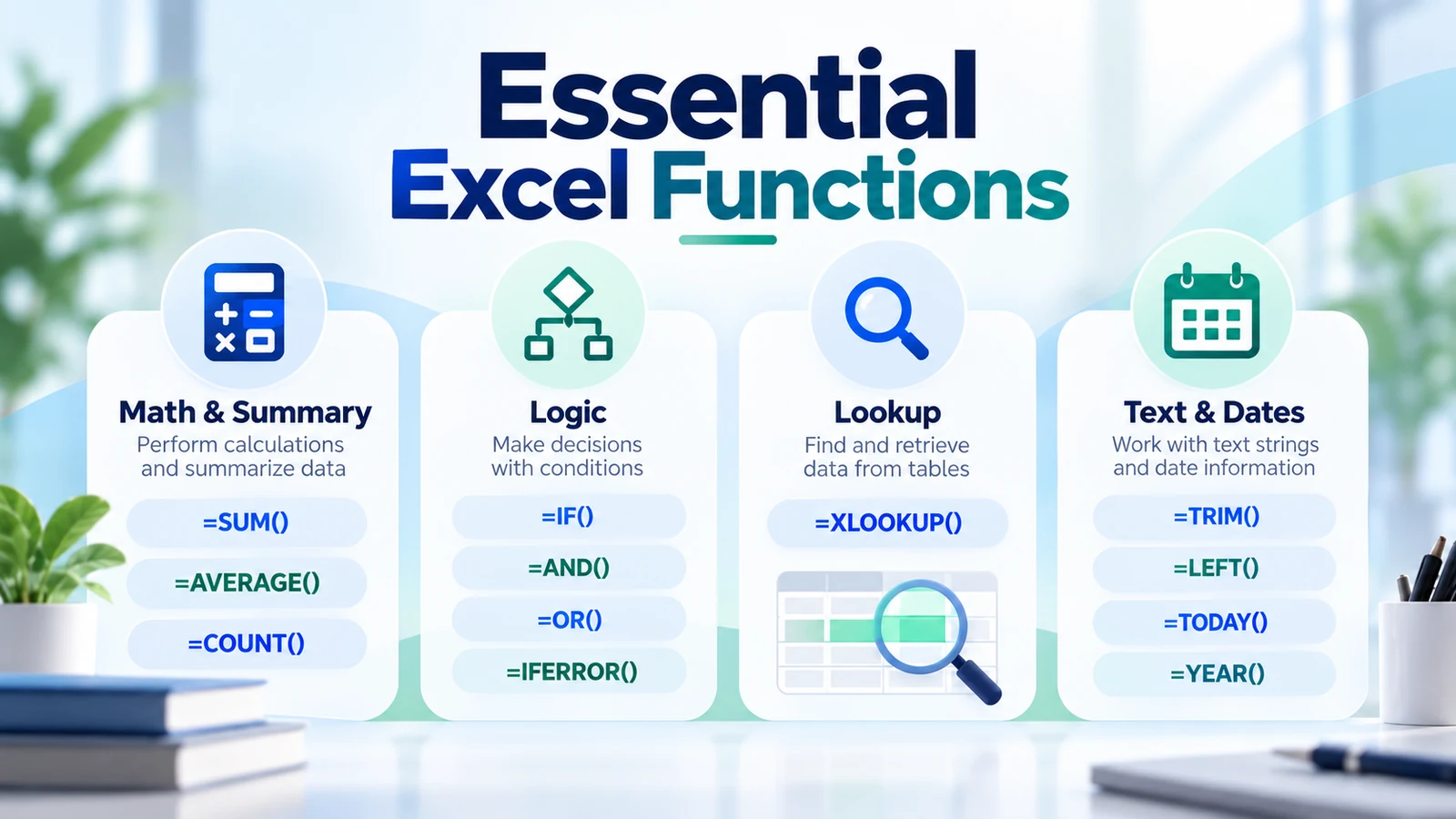
You do not need to memorize hundreds of functions. A smaller set covers a large share of everyday spreadsheet work.
1. SUM — Add Values
=SUM(B2:B20)Use SUM to add a range of numbers, such as costs, hours, quantities, or revenue.
2. AVERAGE — Calculate the Mean
=AVERAGE(C2:C20)AVERAGE is useful for performance metrics, cycle times, scores, and other numeric measurements.
3. MIN and MAX — Find Extremes
=MIN(D2:D20)
=MAX(D2:D20)
These functions quickly identify the smallest and largest values in a dataset.
4. COUNT and COUNTA — Count Records
=COUNT(B2:B100)
=COUNTA(A2:A100)
COUNT counts numeric cells. COUNTA counts non-empty cells, including text.
Use IF to Add Decision Logic
The IF function returns one result when a condition is true and another when it is false. Microsoft describes IF as one of Excel’s most popular logical functions in its IF function documentation.
Syntax:
=IF(logical_test,value_if_true,value_if_false)Example:
=IF(E2>D2,"Over Budget","On Track")This can be used in a project budget tracker to flag whether actual cost exceeds planned cost.
Combine IF with AND or OR
=IF(AND(B2="High",C2<TODAY()),"Escalate","Monitor")This checks two conditions before returning “Escalate.”
Use nested IF statements carefully. Deeply nested logic can become difficult to audit and maintain. When logic becomes too complex, a lookup table or a different function may be easier to manage.
SUMIF and SUMIFS — Add Values That Meet Criteria
SUMIF adds values based on one condition. SUMIFS supports multiple conditions.
Example:
=SUMIFS(D2:D100,B2:B100,"Open",C2:C100,"High")This could sum the estimated cost of items that are both Open and High priority.
Microsoft’s SUMIFS reference notes that SUMIFS can evaluate multiple range-and-criteria pairs, making it especially useful for structured reporting.
COUNTIF and COUNTIFS — Count Matching Records
COUNTIF and COUNTIFS are useful when you need to count records that meet one or more criteria.
=COUNTIF(B2:B100,"Open")Counts the number of Open items.
=COUNTIFS(B2:B100,"Open",C2:C100,"High")Counts items that are both Open and High priority.
These functions are practical for issue logs, action trackers, risk registers, quality checks, and status reports.
XLOOKUP — Retrieve Matching Information
XLOOKUP searches for a value and returns related information from another range.
Syntax:
=XLOOKUP(lookup_value,lookup_array,return_array,[if_not_found])Example:
=XLOOKUP(A2,Projects[Project ID],Projects[Owner],"Not Found")This searches for a Project ID and returns the corresponding owner.
Microsoft describes XLOOKUP as an improved alternative to VLOOKUP because it can return values from either side of the lookup column and uses exact matching by default. Microsoft also notes that XLOOKUP is not available in Excel 2016 or Excel 2019, so workbook compatibility matters when files are shared across different Excel versions. See the official XLOOKUP reference.
IFERROR — Make Formulas Easier to Read
Formula errors can be valid signals, but they are not always useful in a finished report.
=IFERROR(A2/B2,0)If the calculation generates an error, Excel returns 0 instead.
You can also combine IFERROR with lookups:
=IFERROR(XLOOKUP(A2,F2:F100,G2:G100),"Not Found")Use IFERROR carefully. Hiding every error can make troubleshooting harder, so apply it when you understand why the error can occur.
Useful Text Functions
Text functions are valuable when datasets contain names, codes, imported fields, or inconsistent text.
TRIM
=TRIM(A2)Removes unnecessary spaces from text.
LEFT and RIGHT
=LEFT(A2,3)
=RIGHT(A2,4)
Extract characters from the beginning or end of a text string.
LEN
=LEN(A2)Returns the number of characters in a cell.
CONCAT or TEXTJOIN
=TEXTJOIN(" - ",TRUE,A2,B2,C2)Combines several values into one text string using a chosen separator.
Useful Date Functions
Dates are essential in schedules, project plans, service tracking, and reporting.
TODAY
=TODAY()Returns the current date.
YEAR, MONTH, and DAY
=YEAR(A2)
=MONTH(A2)
=DAY(A2)
Extract parts of a date for grouping or analysis.
Calculate Days Until a Deadline
=B2-TODAY()If B2 contains a deadline, this calculates the number of days remaining.
Dynamic Array Functions
In Excel versions that support dynamic arrays, functions such as FILTER, SORT, and UNIQUE can return multiple results automatically into neighboring cells.
Example:
=FILTER(A2:D100,D2:D100="Open")This can return all rows where the status is Open without manually filtering the source table.
=UNIQUE(B2:B100)This creates a dynamic list of unique values.
Dynamic arrays can simplify dashboards, validation lists, and summary sheets because the returned range can expand or shrink as the source data changes.
Structured References with Excel Tables
If your source range is formatted as an Excel Table, formulas can use readable column names instead of raw coordinates.
=SUM(Projects[Budget])or:
=IF([@Status]="Closed","Complete","Active")Structured references make larger workbooks easier to audit and maintain, especially when rows are frequently added.
If you need a broader practical introduction to Tables, lookups, PivotTables, and Power Query, continue with How to Use Excel: Practical Skills for Everyday Work.
Five Practical Formula Examples for Project Managers
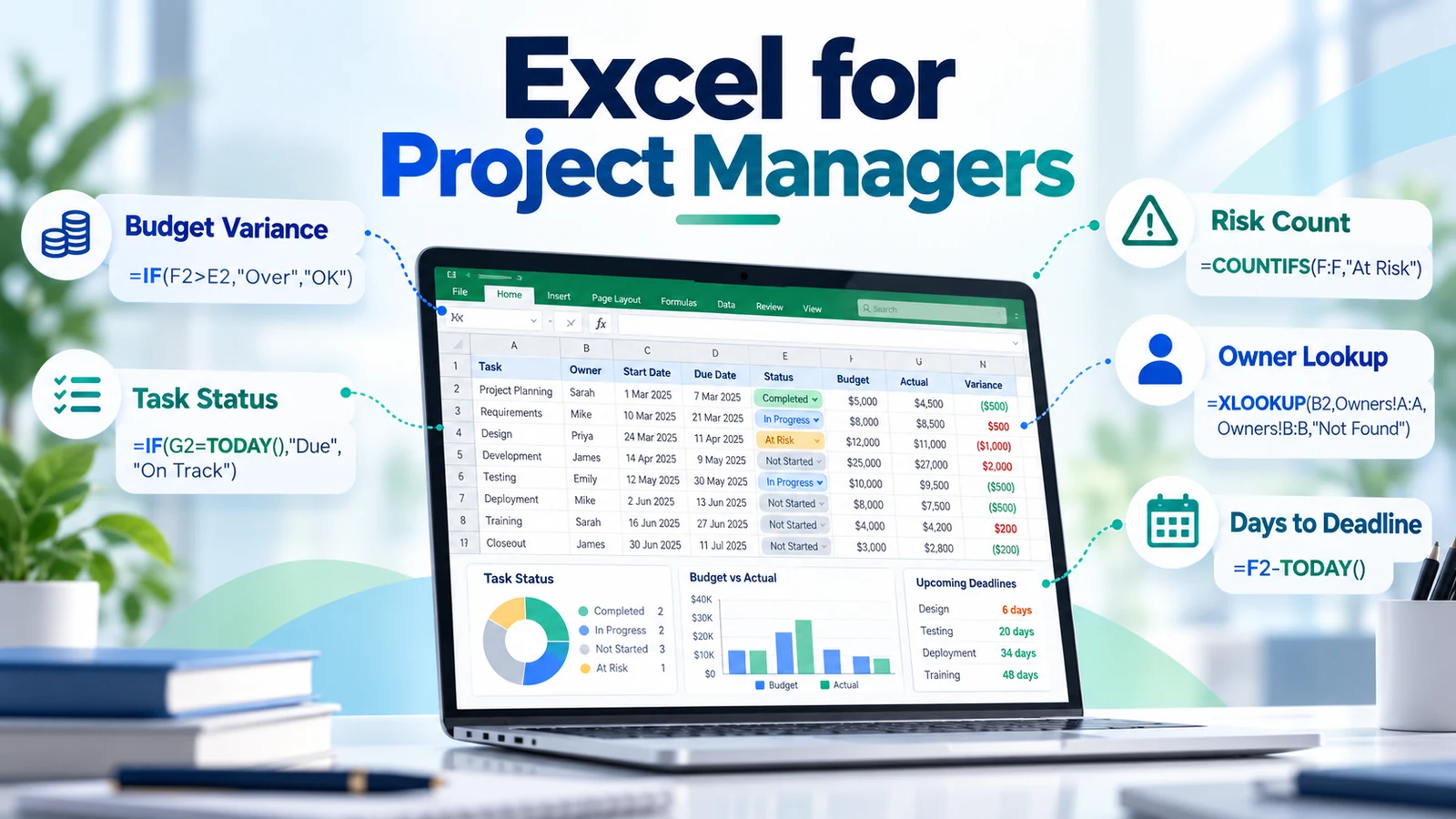
1. Flag an overdue task
=IF(AND(C2<TODAY(),D2<>"Done"),"Overdue","OK")2. Calculate budget variance
=ActualCost-PlannedCostUsing cells:
=E2-D23. Count high-priority open risks
=COUNTIFS(B2:B100,"Open",C2:C100,"High")4. Retrieve an owner from a reference table
=XLOOKUP(A2,Reference[ID],Reference[Owner],"Not Found")5. Sum costs for one workstream
=SUMIF(B2:B100,"Network",D2:D100)These patterns can be reused in project trackers, RAID logs, action lists, resource plans, and management reports.
Common Excel Formula Errors
#DIV/0!
A formula is dividing by zero or by a blank cell.
#N/A
A lookup cannot find the requested value.
#VALUE!
The formula is receiving an unexpected data type, such as text where a number is required.
#REF!
A referenced cell or range is no longer valid, often because rows, columns, or sheets were deleted.
#NAME?
Excel does not recognize part of the formula, often because of a misspelled function or named range.
#SPILL!
A dynamic array formula cannot return its full result because one or more cells in the intended output area are blocked.
Formula Best Practices
- Use cell references instead of hard-coded values when inputs may change.
- Use Excel Tables for datasets that grow over time.
- Keep formulas readable. Complex formulas are harder to review and troubleshoot.
- Separate assumptions from calculations in important models.
- Use absolute references deliberately when copying formulas.
- Test formulas with edge cases such as blanks, zeros, missing matches, and unexpected text.
- Document critical business logic when several people will maintain the workbook.
- Avoid hiding every error before understanding its cause.
How Excel Formulas and Functions Fit into Your Learning Path
Formulas are one layer of a larger Excel workflow:
- Structure data correctly.
- Use formulas and functions to calculate and classify information.
- Control inputs with validation and drop-down lists.
- Clean datasets by identifying and removing duplicates.
- Summarize information with PivotTables.
- Prepare repeatable transformations with Power Query.
- Communicate results through charts and dashboards.
You can see the complete learning structure on the new Microsoft Excel learning hub.
Continue Learning
Excel Formulas and Functions: Final Takeaway
You do not need every Excel function to become highly effective. Start with a focused toolkit: SUM, AVERAGE, COUNT, IF, SUMIFS, COUNTIFS, XLOOKUP, IFERROR, text functions, and date functions. Then add more specialized functions as your workbooks become more advanced.
The goal is not to build the most complicated formula. The goal is to build a workbook that is accurate, understandable, maintainable, and useful for decisions.