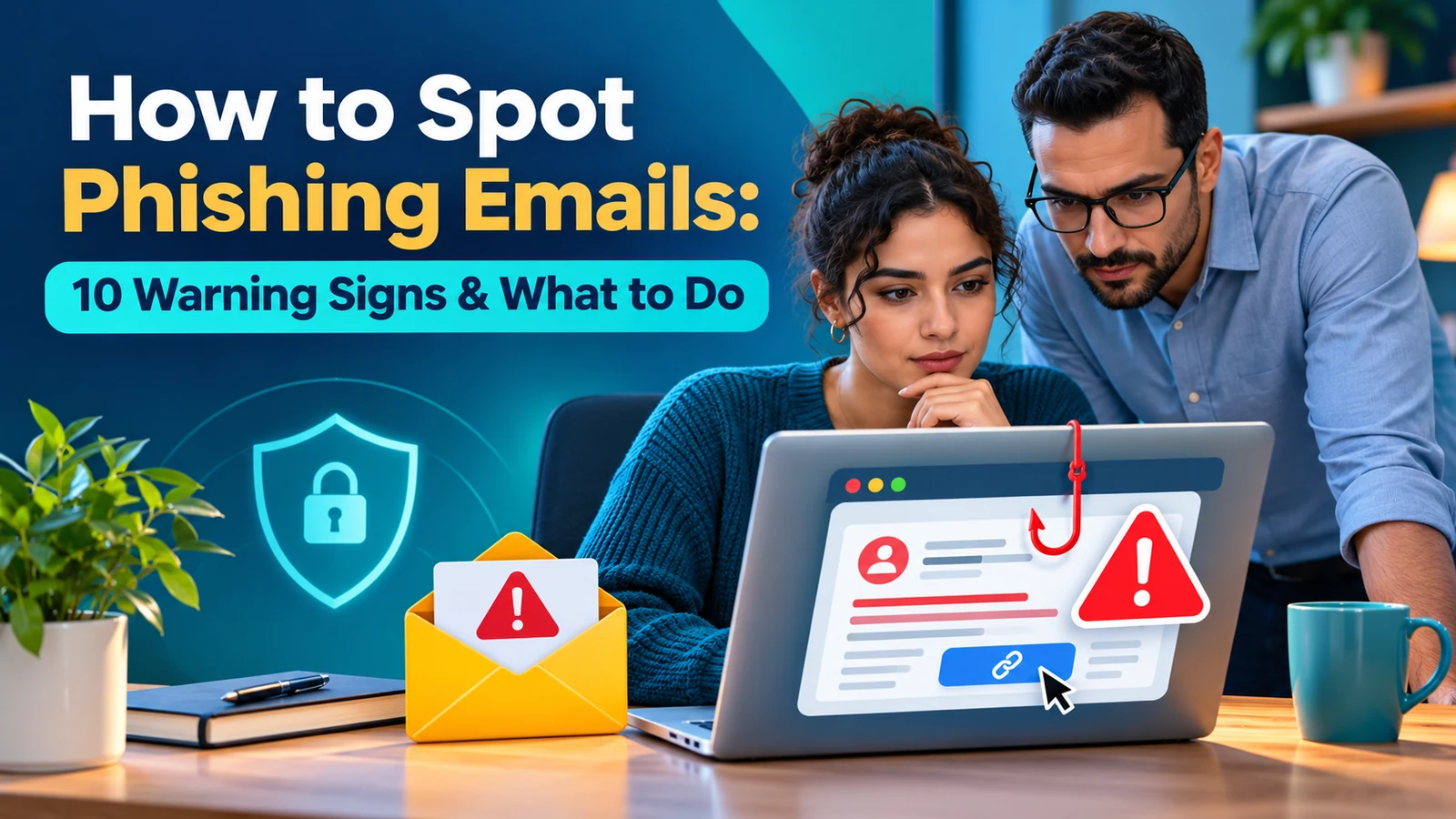
Learn how to spot phishing emails, recognize ten warning signs, verify suspicious messages safely, and respond after clicking a phishing link.
An email arrives with an alarming subject line: "Your account will be suspended unless you verify your information immediately."
It has a familiar logo, professional wording, and a button labeled "Verify Account."
Would you click?
Learning how to spot phishing emails begins with recognizing unexpected requests and checking them independently. A message can look authentic, use perfect grammar, and still be designed to steal your information or money.
Fortunately, you do not need advanced cybersecurity knowledge to develop safer email habits.
In this guide, you will discover ten common phishing warning signs, examine realistic fictional examples, and learn how to verify suspicious messages without interacting with potentially dangerous links.
You will also learn what to do if you clicked a suspicious link, shared a password, or sent money.
The essential principle is simple:
Pause. Verify independently. Report suspicious messages. Respond appropriately.
How to Spot Phishing Emails at a Glance
Phishing is a deceptive attempt to persuade someone to reveal information, visit a fraudulent website, open harmful content, or perform another action that benefits a scammer.
Phishing emails often impersonate trusted organizations, such as banks, employers, delivery companies, or online services.
However, an email does not need to contain spelling mistakes or an obviously fake logo to be dangerous.
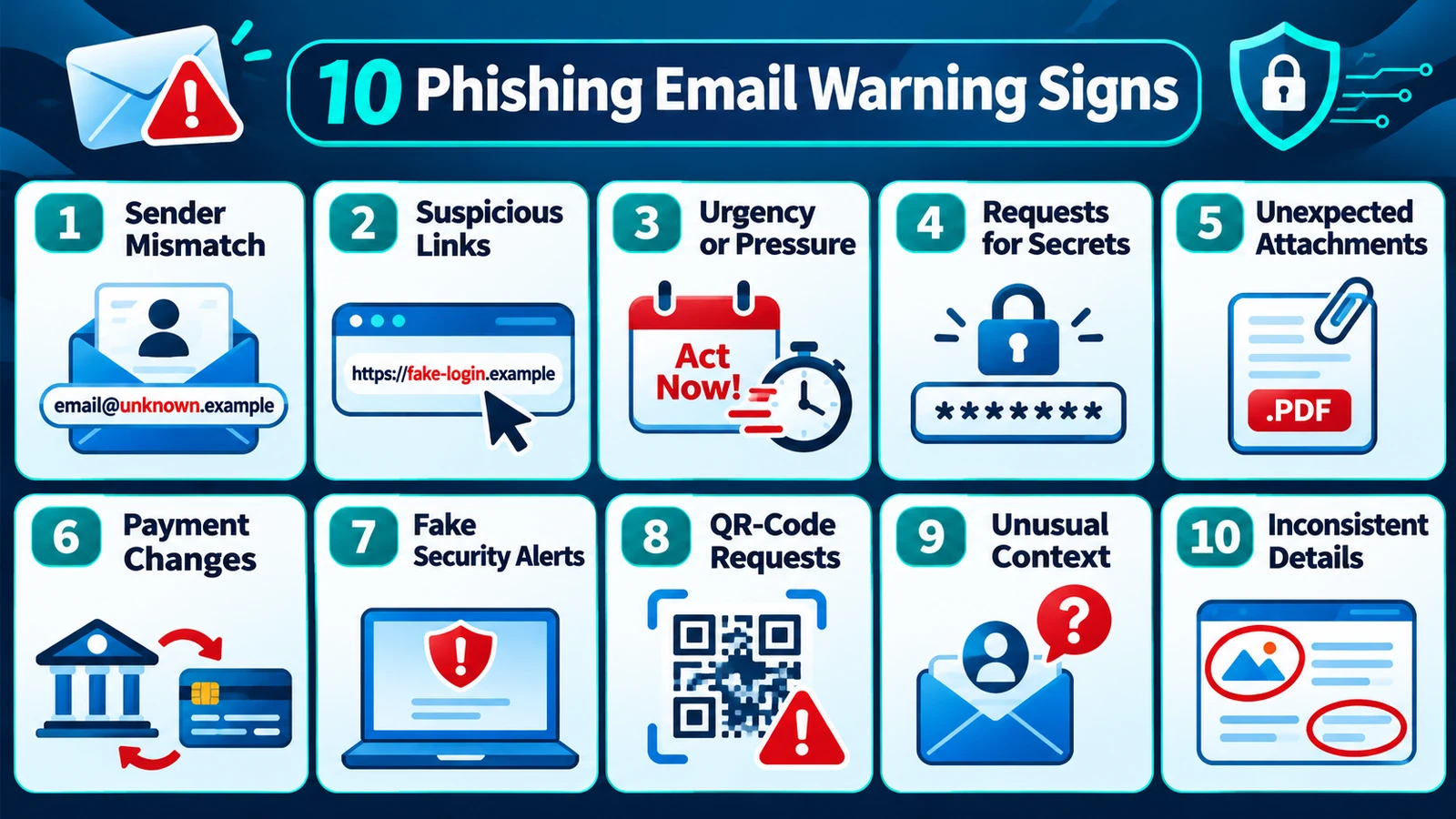
10 Phishing Email Warning Signs
| # | Warning sign | What to look for |
|---|---|---|
| 1 | Sender mismatch | Address does not fit the claimed organization |
| 2 | Suspicious links | Unexpected or lookalike website destinations |
| 3 | Urgency or pressure | Threats or demands for immediate action |
| 4 | Requests for secrets | Passwords, verification codes or sensitive data |
| 5 | Unexpected attachments | Unsolicited files or shared documents |
| 6 | Payment changes | New bank details or unusual transfer requests |
| 7 | Fake security alerts | Unexpected account or login warnings |
| 8 | QR-code requests | Instructions to scan an unverified code |
| 9 | Unusual context | Requests outside normal conversations or procedures |
| 10 | Inconsistent details | Suspicious wording, branding or circumstances |
These signs help you recognize situations that require caution. They are not a scoring system that proves whether an email is safe or fraudulent.
Even a message with no obvious warning signs may deserve verification if it requests money, account access, or confidential information.
For a broader introduction to online safety, explore Digital Skills for Beginners: A Practical Roadmap.
What Is a Phishing Email?
A phishing email is a deceptive message intended to make the recipient perform an action that could compromise information, accounts, devices, or money.
For example, someone might pretend to represent your employer and ask you to open a document or confirm your login details.
The attacker may send the same message to thousands of people or personalize it for one individual. A targeted attack is often called spear phishing.
Phishing vs Spam vs Legitimate Business Email
Although these terms are sometimes confused, they are not identical.
Spam generally means unwanted or unsolicited messages, often promotional. Some spam is harmless advertising, while other unwanted messages may contain scams.
Phishing uses deception to encourage a harmful action, such as disclosing credentials or making an unauthorized payment.
A legitimate business email comes from an authorized sender for a genuine purpose. Nevertheless, even an apparently familiar address can be impersonated, or a real account can be compromised.
Therefore, check both the message’s authenticity and the action it asks you to perform.
To understand phishing within the wider security landscape, read What Is Cybersecurity?.
How to Spot Phishing Emails: 10 Warning Signs
If you want to learn how to spot phishing emails at work or at home, these signs can help you recognize unexpected requests to sign in, share information, open a file, or make a payment.
1. The Sender Address Does Not Match the Claimed Organization
A phishing email may show the name of a familiar organization while using an unrelated address.
Fictional example
- Display name: Customer Support
- Sender: [email protected]
- Claim: "We are contacting you on behalf of your bank."
The sender name appears reassuring, but the email address does not establish a relationship with the claimed bank.
Sometimes, scammers also use lookalike domain names or compromised legitimate accounts. Consequently, an address that looks familiar is not definitive proof of authenticity.
What to do: Contact the organization using its official app, a known website, or a telephone number you already trust. Do not use contact details found only in the suspicious email.
2. The Email Contains Suspicious or Lookalike Links
A phishing message may include a button that appears to lead to a legitimate website but actually directs the reader elsewhere.
For example, the visible text might say "Sign in to your account," while the underlying destination uses an unfamiliar domain.
Other warning signs include misspelled brand names, misleading subdomains, and unexpected redirects.
Importantly, HTTPS or a padlock icon does not by itself prove that a website is legitimate. Fraudulent websites can also use encrypted connections.
What to do: Avoid the suspicious link. Instead, open the service independently using a previously trusted bookmark, website address, or official app.
On mobile devices, do not tap or long-press an untrusted link merely to investigate its destination.
3. The Message Creates Urgency, Fear or Pressure
Scammers often try to make people act before thinking.
Fictional example: "Final warning: Your account will be disabled in 10 minutes unless you verify your identity."
Other messages may claim that a parcel has been delayed or that a payment must be completed immediately.
Of course, genuine organizations sometimes send urgent notifications. However, urgency combined with an unexpected request is a reason to verify—not a reason to rush.
What to do: Pause. Check the issue using an independent channel before taking action.
4. Someone Requests Passwords, Verification Codes or Sensitive Information
A suspicious message may request a password, account recovery code, bank details, or personal identification information.
One particularly dangerous scenario involves an unexpected request to share a one-time verification code.
Fictional example: "Reply with the six-digit code you just received so we can restore access."
A verification code may allow someone to sign in, recover an account, or approve a sensitive action.
What to do: Never disclose passwords or one-time login codes in response to an unexpected email. If you initiated a legitimate login, enter the code only through the genuine service’s intended process.
5. An Unexpected Attachment or Shared Document Requires Action
Phishing messages can contain fake invoices, receipts, spreadsheets, payroll documents, or file-sharing notifications.
The attachment might contain harmful software, or a document-sharing link might lead to a fraudulent sign-in page.
Fictional example: "Please open the attached updated payroll file before today’s deadline."
The sender may even appear to be someone you know.
What to do: Verify the request independently before opening an unexpected attachment or shared document. At work, follow your organization’s security-reporting and file-handling procedures.
Do not enable macros, install software, or weaken security settings merely because an unexpected file requests it.
6. A Payment Request or Bank Detail Change Appears Unexpectedly
Scammers sometimes impersonate suppliers, managers, or finance teams to redirect payments.
Fictional example: "Our banking details have changed. Please use the new account for invoice 104."
The message may refer to a real business relationship or appear within an existing email conversation.
Nevertheless, an unexpected change to payment instructions is a significant warning sign.
What to do: Verify the change through an established supplier contact and approved financial controls. Never rely solely on the phone number or contact information supplied in the email requesting the change.
7. A Surprise Account Suspension or Security Alert Demands a Login
An email may claim that suspicious activity was detected or that your account will be suspended unless you sign in immediately.
Fictional example: "Unusual login detected. Click below to protect your mailbox."
Real services sometimes send genuine security alerts, so the subject alone does not establish fraud.
The concern arises when an unexpected message directs you to a login page or requests sensitive information through an unverified route.
What to do: Open the official service independently and examine account notifications there. If the alert is genuine, follow the service’s authorized recovery process.
8. A QR Code Directs You to an Unverified Website
A QR code can hide a website destination until a device interprets it.
For example, a phishing email might say: "Scan this code to reactivate your account."
This technique is often called QR-code phishing or quishing.
The underlying destination could lead to a fake login page, a payment request, or another malicious interaction.
What to do: Avoid scanning an unexpected QR code sent by email, especially when the message pressures you to act. Access the genuine service separately.
A QR code is simply another way to present a link; it does not make the destination trustworthy.
9. The Request Does Not Fit the Normal Conversation or Business Process
Sometimes, the strongest clue is not technical. It is the request itself.
Fictional example: A colleague who normally follows a formal approval process suddenly asks you to send confidential documents to a personal email account.
Another example is a manager unexpectedly requesting gift cards or a payment outside established procedures.
Even if the message appears within a familiar conversation, the account could have been compromised.
What to do: Verify the request through a previously established channel and follow normal approval procedures.
For organizational guidance on communication and escalation, see Team Communication Strategies.
10. The Tone, Details or Branding Feel Inconsistent
Incorrect logos, strange formatting, unusual language, and contradictory details can indicate something is wrong.
For instance, an email might claim to be an official security notice but use inconsistent account information.
However, poor spelling is not a reliable requirement for phishing.
Scammers can create professional-looking messages, including polished language and convincing branding.
What to do: Treat inconsistencies as useful clues. More importantly, evaluate the requested action and verify it independently whenever sensitive information or money is involved.
Why No Single Warning Sign Is Enough
It can be tempting to treat phishing detection as a simple exercise in counting suspicious features.
However, email security is more complex.
A NIST study published in September 2026 examined how phishing-email cues affected human behavior in a large organizational simulation. Its preliminary findings did not identify a simple relationship between cue types and clicking behavior in that study.
This does not mean warning signs are useless. Rather, it reinforces the importance of combining awareness with a reliable verification process.
The goal is not to judge an email by appearance alone. It is to avoid risky action until an important request has been independently confirmed.
How to Spot Phishing Emails: Suspicious vs Safer Examples
These realistic—but entirely fictional—examples show how to spot phishing emails by examining the request and checking it independently.
All example domains below use the reserved .example domain and are not operational phishing destinations.
Example 1 — Fake Account Verification Email
Fictional suspicious email
| Field | Message detail |
|---|---|
| From | Account Team [email protected] |
| Subject | Immediate Action Required — Account Access Ending |
| Body | "Your account will be disabled shortly. Verify your identity using the link provided." |
| Requested action | Open an unfamiliar verification page and sign in |
What makes it suspicious?
The sender’s relationship to the claimed service is unclear. Furthermore, the message creates pressure and directs the reader to an unverified login page.
Safer response: Do not use the link. Instead, open the real service independently and check whether any genuine account notification exists.
Example 2 — Unexpected Supplier Payment Change
Fictional suspicious email
| Field | Message detail |
|---|---|
| From | Billing Department [email protected] |
| Subject | Updated Bank Details for Invoice 104 |
| Body | "Our account has changed. Please use the new bank details immediately." |
| Requested action | Replace existing payment instructions |
What makes it suspicious?
The message asks for a sensitive financial change without independent confirmation. It also creates pressure to bypass a normal control.
Safer response: Contact the supplier through previously verified details and follow your organization’s payment approval process.
Example 3 — A Lower-Risk Notification
Fictional message
Subject: Monthly Statement Available
Your monthly statement is now available in your account.
To review it, open the official app or visit the website you normally use for your account.
This email does not request your password or verification code.
This example presents fewer obvious risk indicators because it does not direct the reader toward an unfamiliar login page or ask for sensitive information.
However, lower risk does not mean guaranteed legitimate. Authenticity still depends on the sender, context, and independent verification when needed.
How to Check a Suspicious Email Safely
When an unexpected message asks you to take action, use a consistent process instead of trying to decide immediately whether it is real.
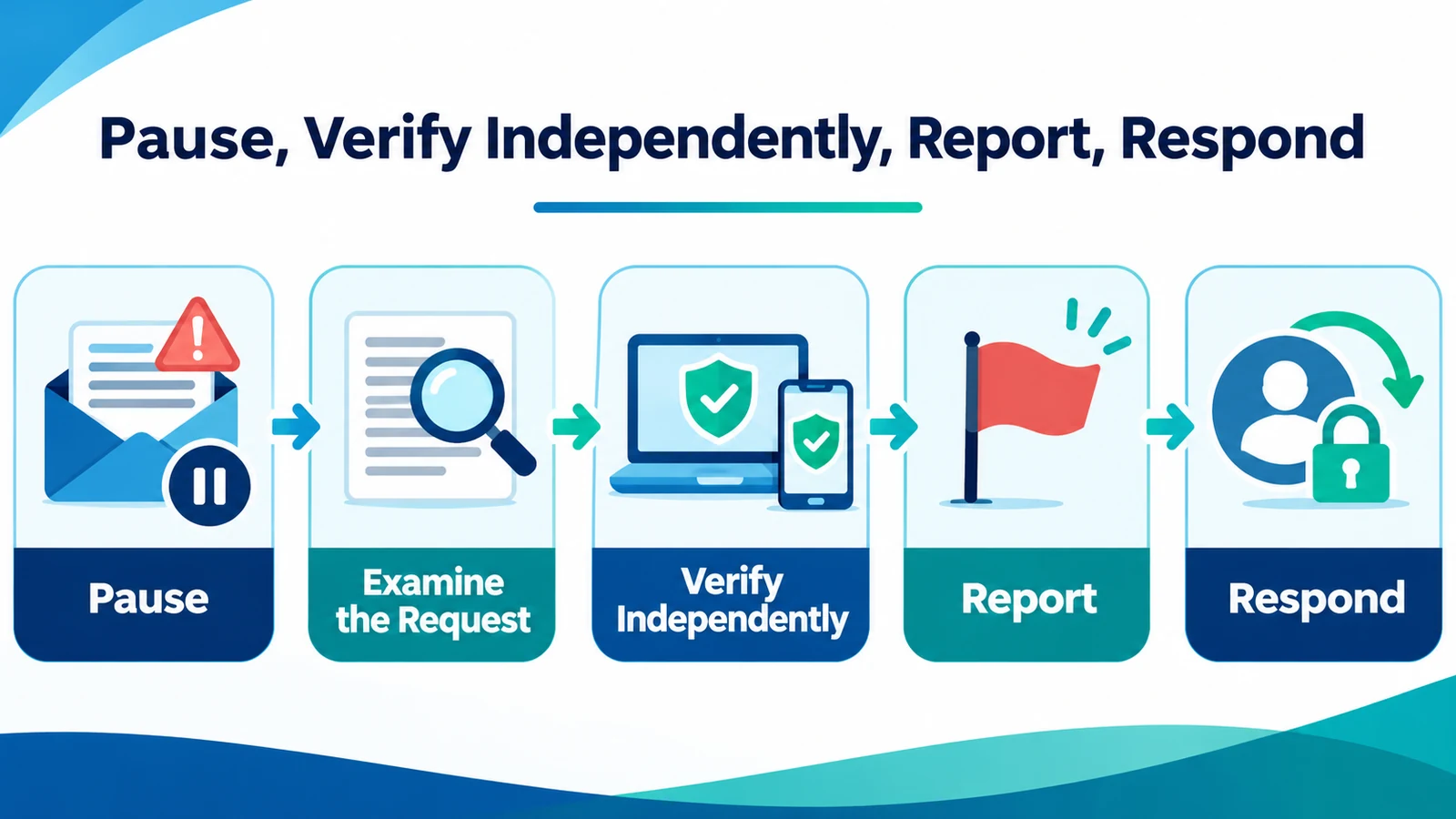
How to Spot Phishing Emails: Five-Step Verification Checklist
Step 1 — Pause before interacting. Avoid replying, selecting unfamiliar links, opening attachments, or scanning QR codes.
Step 2 — Examine the request. Check whether the claimed sender, purpose, urgency, and requested action make sense. Focus especially on requests involving credentials, confidential information, or money.
Step 3 — Review visible details cautiously. Look for unfamiliar sender addresses, domains, or inconsistencies. However, do not open suspicious content merely to investigate it.
Step 4 — Verify independently. Use a trusted bookmark, official application, previously known telephone number, or existing workplace communication channel. Do not rely on the contact details supplied in the suspicious message.
Step 5 — Report and follow guidance. At work, use the established phishing-reporting process. For personal email, use the provider’s reporting function or an appropriate reporting authority.
The workflow is:
Pause → Examine → Verify independently → Report → Respond if necessary
Remember that the safest way to check an unfamiliar website is generally not to visit it in the first place.
What to Do if You Clicked a Phishing Link
Knowing how to spot phishing emails reduces risk, but anyone can make a mistake. The appropriate response depends on what happened after you interacted with the message.
A suspicious click does not automatically prove that your account or device has been compromised. Nevertheless, it deserves attention, particularly if information was submitted or software was downloaded.
Choose the Response That Matches the Situation
| What happened? | Initial response |
|---|---|
| Clicked a suspicious link but entered nothing | Stop interacting, report the event, and assess whether anything downloaded |
| Submitted a password or verification code | Secure the account through a trusted route and report promptly |
| Opened a suspicious attachment | Follow device-security and incident-response procedures |
| Shared payment details or transferred money | Contact the bank or payment provider immediately |
| Shared sensitive identity information | Follow relevant identity-protection and local reporting guidance |
If You Clicked but Did Not Enter Information
First, stop interacting with the page.
Do not download additional files, allow notifications, approve access requests, or enter any information.
Next, consider whether a file downloaded or your device behaved unexpectedly.
If the event happened on a work device, report it to the organization’s IT or security team and follow their instructions.
For a personal device, keep software updated. If you suspect a harmful download, use trusted security software and seek qualified assistance when necessary.
Simply visiting a suspicious page does not have the same implications as submitting credentials or installing software. Even so, do not dismiss an unexplained download or security warning.
If You Entered a Password or Shared a Verification Code
Use the legitimate service’s official app or website through a trusted route.
Change the affected password promptly. If that password was reused on other accounts, change it there as well.
Then review available account-security information, including recent sign-ins, recovery settings, and active sessions. Revoke unfamiliar sessions where supported.
Enable or strengthen multifactor authentication, preferably with phishing-resistant options when available.
If a verification code or session approval was disclosed, additional account-recovery steps may be necessary.
For workplace accounts, notify the IT or security team immediately. Where possible, perform recovery from a trusted device.
If You Opened a Suspicious Attachment
Stop interacting with the file and do not enable additional features, macros, or permissions it requests.
If the device belongs to your employer, contact the security team promptly and follow its incident-response instructions. Avoid deleting evidence or independently changing the device’s configuration when investigators may need to assess it.
For personal devices, update trusted security software and run an appropriate scan. Seek professional support if you suspect the device has been compromised.
If You Shared Financial Information or Sent Money
Contact the affected bank, card issuer, or payment provider immediately through an independently verified number or official app.
Explain the suspected fraud and ask about available protective actions, transaction investigation, and recovery options.
If you shared personal identification information, consult relevant identity-protection resources and local authorities.
In the United States, the FTC provides guidance through What To Do if You Were Scammed and IdentityTheft.gov.
Important: Deleting the original phishing message does not reverse an exposed password, malicious download, or fraudulent transfer.
How to Report Phishing Emails
Once you know how to spot phishing emails, reporting suspicious messages helps organizations and service providers investigate threats and improve their defenses.
Reporting Phishing at Work
Use the organization’s designated reporting button, security mailbox, or IT helpdesk procedure.
If you interacted with the message, report what happened accurately, including whether you clicked a link, downloaded a file, shared credentials, or approved an unexpected login.
Follow instructions on evidence preservation and message removal.
Do not forward suspicious attachments to colleagues or send confidential incident information through unapproved channels.
To learn more about the roles involved in detection and incident handling, see What Does Cybersecurity Do?.
Reporting Personal Phishing Emails
Most email providers offer a Report Phishing or similar reporting control.
For wider reporting, the Anti-Phishing Working Group accepts suspected phishing emails at [email protected].
In the United States, consumers can also report suspected scams to the FTC at ReportFraud.ftc.gov.
Reporting routes vary by country. International readers should use the relevant local cybersecurity, fraud, or consumer-protection channels when appropriate.
After reporting—and preserving evidence if required—remove the message according to your provider’s or employer’s guidance.
Practice Quiz: Can You Spot the Phishing Attempt?
Practice how to spot phishing emails with five everyday situations.
Try answering the questions before checking the explanations.
Question 1: An unexpected email has perfect grammar and a familiar company logo, but asks you to send your password. Is it trustworthy?
Question 2: Your manager appears to request an unusual change to supplier payment details. What should you do before acting?
Question 3: You receive an account-security message demanding that you click a login button within ten minutes. What is the safer response?
Question 4: An email asks you to scan a QR code instead of clicking a normal link. Does the QR code establish that the destination is trustworthy?
Question 5: You entered your password on a suspicious website. Is deleting the original email enough?
Quiz Answers and Explanations
| Question | Correct answer | Explanation |
|---|---|---|
| 1 | No | A polished message can still be fraudulent. Unexpected password requests should not be trusted. |
| 2 | Verify independently | Use a previously established contact and the normal payment approval process. |
| 3 | Open the genuine service separately | Check account notifications without using the email’s unverified login link. |
| 4 | No | QR codes can direct users to fraudulent websites just like ordinary links. |
| 5 | No | Secure the affected account and report the incident. Deleting the email cannot undo credential exposure. |
If you answered all five correctly, you understand the essential response principles.
However, real phishing attempts vary. Continue practicing and use independent verification whenever a message requests sensitive action.
Phishing Email Checklist for Beginners
Before responding to a suspicious email, ask:
- Sender: Does the claimed identity fit the address and context?
- Request: Is the action expected and consistent with normal procedures?
- Links: Is there an unfamiliar website or QR code?
- Attachments: Was the document expected and independently verified?
- Sensitive data: Does the message request credentials, personal information, or money?
- Verification: Have I contacted the person or organization through a trusted, separate channel?
- Reporting: Do I know the appropriate way to report this message?
When uncertain, avoid interacting with suspicious content simply to investigate it.
Pause. Verify independently. Report when appropriate.
Frequently Asked Questions
What is the easiest way to spot a phishing email?
To learn how to spot phishing emails, start by examining unexpected requests involving passwords, payments, personal information, attachments, or login links. Urgency and sender inconsistencies may provide additional clues. However, no individual warning sign reliably identifies every phishing email. Independent verification is the most useful practical habit.
Can phishing emails come from legitimate email addresses?
Yes. Attackers may compromise genuine accounts or impersonate email identities. As a result, even messages from familiar contacts can require verification when the request is unusual or sensitive.
Are phishing emails always badly written?
No. Some contain obvious errors, but others use correct grammar, realistic branding, and personalized details. Professional presentation should never replace verification of an unexpected request.
Is simply opening a phishing email dangerous?
Viewing a message does not automatically mean that a device is compromised. Risks depend on the software, content, device security, and interactions involved. Keep email applications and operating systems updated, avoid suspicious links and attachments, and seek assistance if unusual behavior occurs.
What should I do if I clicked a phishing link on my phone?
Stop interacting with the suspicious website and avoid entering information. If you submitted credentials, secure the relevant account through an official route, preferably using a trusted device. Keep your phone and apps updated. Report the incident if it involves a work account, sensitive information, or suspected compromise.
Should I reply to a suspicious email to confirm whether it is genuine?
No. Replying may reveal information or encourage further contact. Instead, reach the person or organization through a phone number, website, official app, or existing communication channel you already trust.
Conclusion: Pause, Verify and Report
Learning how to spot phishing emails is a practical digital safety skill.
The ten warning signs in this guide can help you recognize unusual messages. Nevertheless, no checklist can guarantee that every fraudulent email will be obvious.
When an email asks you to share information, visit an unfamiliar website, open unexpected content, or make a payment, verify the request through a trusted channel.
If you have already interacted with a suspicious message, respond according to what happened and report it promptly when appropriate.
You do not need to identify every scam instantly. You need a reliable process for handling unexpected requests safely.
Stay Safer and More Confident Online
Recognizing suspicious messages is one step toward building stronger digital confidence.
Explore TechTeamSynergy Weekly for practical insights on cybersecurity, digital skills, AI, and everyday technology.
Explore TechTeamSynergy Weekly
References and Further Reading
These sources inform the article’s recommendations on recognizing, verifying, reporting, and responding to phishing.
- CISA — Recognize and Report Phishing. Phishing awareness, suspicious messages, and reporting.
- NIST — Phishing: Small Business Cybersecurity Guidance. Common phishing risks, verification, organizational safeguards, and incident actions.
- FTC — How To Recognize and Avoid Phishing Scams. Everyday examples, protective habits, and reporting options.
- FTC — What To Do if You Were Scammed. Recovery actions following financial fraud or disclosure of sensitive information.
- FTC — Scammers Hide Harmful Links in QR Codes. QR-code phishing and safe verification.
- NIST — Phish Out of Water: A Large-Scale Study of Phishing Email Cues (2026). Preliminary research on phishing-email cues and human responses.
Editorial note: All example emails, identities, and scenarios are fictional. This article provides general cybersecurity education and does not replace organizational security procedures, incident-response guidance, or qualified technical assistance.
Continue Learning
Continue building safer digital habits with these TechTeamSynergy guides on cybersecurity, communication and AI.