
Cloud storage for beginners: learn how to upload, organize, share, synchronize, and protect files with Google Drive, Microsoft OneDrive, and other everyday services.
Imagine creating an important document on your laptop. Later, you need to open it from your phone, share it with a colleague, or recover an earlier version. How can you do that without emailing the document to yourself or carrying a USB drive?
Cloud storage for beginners is about learning a few simple habits that make your files easier to access, organize, and protect. Rather than relying on one device, you can save documents in an online storage service and access them through your account.
However, convenience is only part of the story. You also need to understand who can open your files, what happens when they synchronize, and how to recover information if something goes wrong.
In this guide, you will learn how to use cloud storage with Google Drive and OneDrive, manage sharing permissions, distinguish synchronization from backup, and complete a practical 15-minute exercise. No programming or advanced technical knowledge is required.
Cloud Storage for Beginners at a Glance
Cloud storage is a service that lets you save digital files on systems managed by a provider. After uploading a file, you can typically access it through the provider’s website, mobile app, or supported desktop software.
| Concept | What it means | Everyday example |
|---|---|---|
| Cloud storage | Files stored in an online service | Saving an agenda to Google Drive |
| Upload | Sending a file to the service | Uploading a PDF |
| Download | Saving a cloud file to a device | Downloading a presentation |
| Synchronization | Keeping selected files or changes consistent across connected locations | Editing a synced document |
| File sharing | Giving other people access | Sharing an agenda with a colleague |
| Offline access | Opening locally available files without a current connection | Reading a prepared document offline |
| Version history | Recovering earlier versions when supported | Restoring removed text |
| Backup | Keeping a separate recoverable copy | Maintaining an independent copy on another storage system |
Key takeaway: Cloud storage helps you access files from different devices. However, it does not automatically replace careful sharing permissions or an independent backup.
If you are developing your digital confidence, start with Digital Skills for Beginners: A Practical Roadmap.
What Is Cloud Storage and How Does It Work?
Cloud storage lets you save documents, spreadsheets, photos, videos, and other files using an online service. Instead of keeping every file on one device, you can store it in an account managed by a cloud provider.
For example, you might upload a document using your laptop and open it later through the official mobile app.
Cloud Storage vs Local Storage
Local storage means files are saved directly on a device, such as a laptop, smartphone, or external drive. Cloud storage means files are saved in an online service.
If a document exists only on an unavailable laptop, you might not be able to retrieve it immediately. By contrast, a successfully uploaded document may remain accessible through your cloud account.
Nevertheless, online access still depends on the service, your account permissions, and an internet connection unless an offline copy is available.
How Cloud Storage Uploads Work
The process is straightforward: Your device → Internet connection → Cloud storage service → Access from another authorized device.
- Create meeting-agenda.docx on your laptop.
- Than Open your cloud storage account.
- Upload the document.
- Wait for the service to store the file.
- Sign in from another device and retrieve it.
Before relying on an uploaded copy, confirm that the upload finished successfully and that the correct file appears in your account.
Cloud Storage vs Cloud Computing
The Cloud storage is one part of the broader cloud computing ecosystem. Cloud computing includes remotely delivered applications, computing resources, databases, and other services.
By comparison, everyday cloud storage focuses on saving, finding, organizing, and sharing information. Beginners do not need to understand server architecture to use cloud storage confidently.
Cloud Storage for Beginners: Google Drive, OneDrive or Dropbox?
For example, Google Drive, Microsoft OneDrive, and Dropbox are three familiar cloud storage services, although their features differ.
| Service | Common ecosystem | Good starting point |
|---|---|---|
| Google Drive | Google accounts, Docs, Sheets and Slides | Managing documents with Google tools |
| Microsoft OneDrive | Windows, Word, Excel and Microsoft 365 | Storing files alongside Microsoft productivity tools |
| Dropbox | Cross-platform file storage and sharing | Organizing and sharing files across supported devices |
However, features, storage allowances, prices, and account restrictions may differ. Choose a service based on your existing tools and needs rather than assuming one provider is best for everyone.
Google Drive: A Practical Starting Point
Google Drive works with Google accounts and integrates with Google Docs, Sheets, and other Google applications. You can upload files, create folders, search for documents, and share them with selected people.
For example, you could create a folder for a school project and grant classmates view or edit access as appropriate. Google’s official documentation explains how to upload files and folders to Drive.
Microsoft OneDrive: Working With Microsoft 365
Similarly, OneDrive can be convenient for people already using Windows, Word, Excel, or Microsoft 365. You can save a document online, open it from another supported device, and share it with appropriate permissions.
For instance, a Word document can be stored in OneDrive so authorized colleagues can review or collaborate on it. Microsoft provides instructions for uploading photos and files to OneDrive.
Dropbox: Another File Storage Option
Likewise, Dropbox supports file storage, synchronization, and sharing across supported devices. It offers viewing and editing permissions for shared content, although controls depend on the account and sharing method.
Dropbox’s official sharing-permissions guide explains the available roles.
Beginner recommendation: Start with one service you already know or have access to. Learn how to upload, retrieve, share, and recover files before exploring advanced features. For workplace information, use an approved organizational service rather than an unauthorized personal account.
Cloud Storage for Beginners: Upload and Organize Files
Next, put these ideas into practice: imagine helping organize a fictional community workshop. You need a place for the event agenda, planning notes, task tracker, and poster.
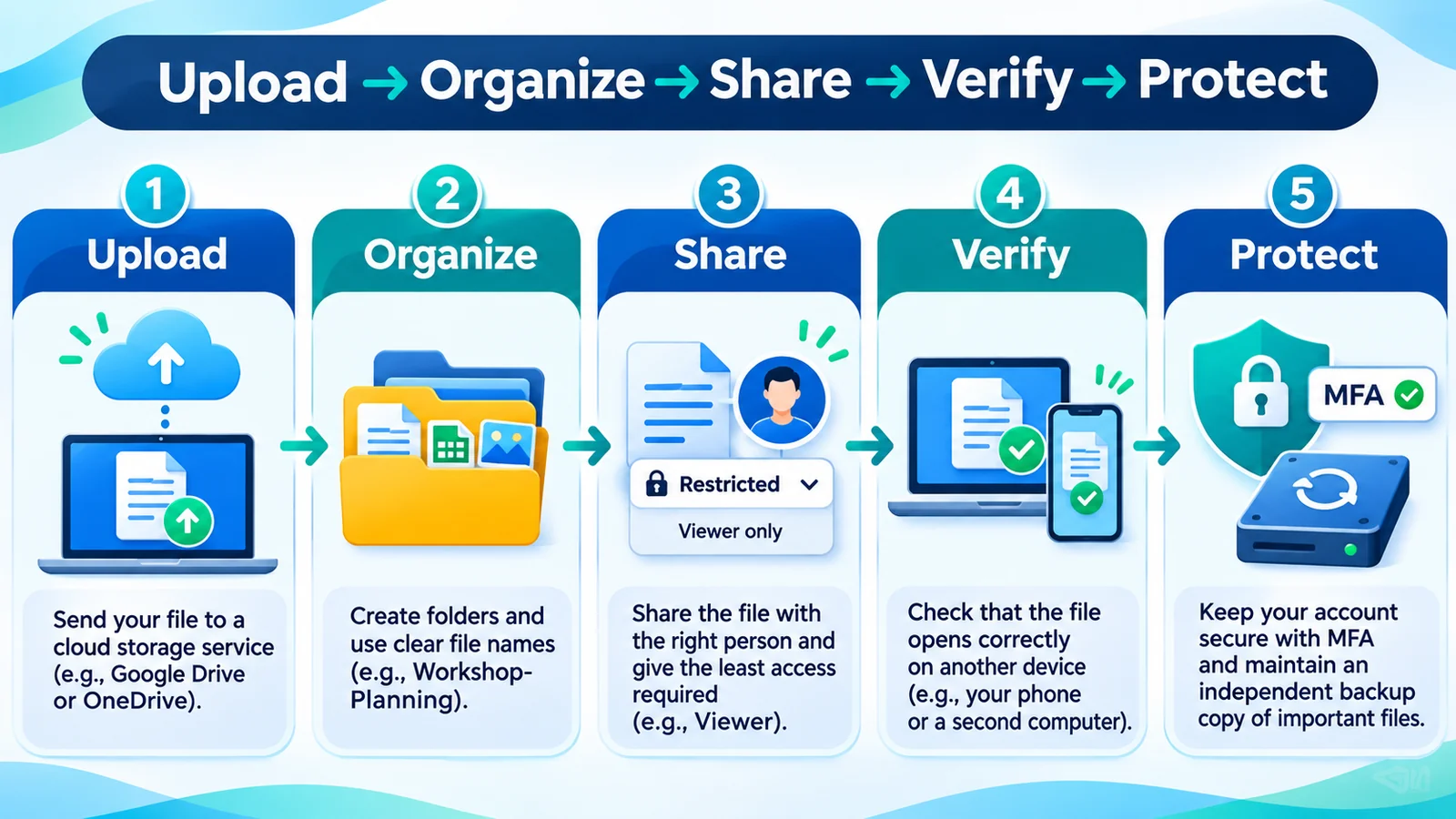
Step 1 — Choose a Cloud Storage Service
First, choose a suitable account, such as Google Drive or OneDrive. For this exercise, use fictional information. Avoid uploading confidential company files or private personal records.
Then sign in through the service’s official website or application.
Step 2 — Create a Folder
Next, create a folder named Workshop-Planning.
In Google Drive:
- Go to drive.google.com.
- Select New.
- Choose New folder or Folder.
- Enter Workshop-Planning.
- Select Create.
In OneDrive:
- Go to onedrive.com and sign in.
- Open the location where you want the folder.
- Choose Add new, New, or the equivalent creation menu.
- Select Folder.
- Enter Workshop-Planning and confirm.
Exact button labels may vary by account, device, language, and interface version.
Step 3 — Upload Your First Document
Then create a simple document with a fictional agenda named workshop-agenda.docx.
Google Drive: Open the workshop folder, select New → File upload, and choose the document.
OneDrive: Open the workshop folder, select Upload, choose the document, and confirm.
Wait for the upload to finish. Then open the folder again and confirm that the correct document appears.
Important: A selected file is not necessarily a successfully uploaded file. Always check the result.
Step 4 — Organize Files With Clear Names
Next, create additional files so your folder contains:
Workshop-Planning/
├── workshop-agenda.docx
├── workshop-notes.docx
├── task-tracker.xlsx
└── event-poster.pdf
For example, use descriptive filenames. When documents change regularly, you can add a date or revision identifier such as workshop-agenda-2026-11-08.docx.
Instead, avoid confusing names such as final-v2-new-final.docx. If the service supports version history, use it appropriately rather than creating unnecessary copies for every small edit.
Step 5 — Find the Document From Another Device
Finally, open the official cloud storage app or website on a smartphone or another computer. Sign in to the same account. Locate Workshop-Planning and open workshop-agenda.docx.
If the file is available, your basic cloud storage workflow is complete.
Practical takeaway: You can upload, organize, and retrieve a document without manually copying it between devices.
Cloud Storage for Beginners: How to Share Files Safely
One essential cloud storage for beginners skill is sharing documents safely. Sharing gives other people access to information. Before sending a file, decide who needs access and what they need to do.
Share a File With Specific People
Suppose a colleague needs to read the workshop agenda, but not edit it.
In Google Drive:
- Select workshop-agenda.docx.
- Choose Share.
- Enter the intended recipient’s email address.
- Select Viewer.
- Review the recipient and settings.
- Send the invitation.
In OneDrive:
- Select the document and choose Share.
- Open the sharing or link settings.
- Choose Specific people, if available.
- Enter the recipient’s details.
- Turn off editing or choose Can view, depending on the interface.
- Review the settings and send.
However, a new restricted sharing link does not necessarily remove earlier access granted through another link, a shared folder, or an existing permission. Therefore, check the complete access list rather than assuming the newest link is the only route.
Cloud Storage Permissions: Viewer vs Commenter vs Editor
Cloud services offer different permissions.
| Permission | Typical capabilities | Example |
|---|---|---|
| Viewer / Can view | Open and read a file | Reviewing an agenda |
| Commenter | Add comments or suggestions where supported | Providing feedback |
| Editor / Can edit | Change file contents and potentially manage access | Updating a task tracker |
For example, Google Drive provides Viewer, Commenter, and Editor roles for supported items. Similarly, OneDrive provides viewing and editing permissions; review capabilities vary by file type and service.
Choose the least access required. A person who only needs to read an agenda should normally receive Viewer access.
View-only permission does not automatically prevent downloading, copying, taking screenshots, or redistributing information someone can see.
Cloud Storage Sharing: Restricted vs Anyone With the Link
A restricted link is intended for specific authorized people. By contrast, Anyone with the link may allow anyone who receives the link to open the file, subject to its permissions.
| Sharing situation | Recommended starting point |
|---|---|
| Internal planning document | Specific people, Viewer |
| Document needing edits from a colleague | Specific people, Editor |
| Confidential personal record | Keep restricted; do not share unnecessarily |
| Public event poster | Broader access only when deliberately intended |
In addition, permissions on an individual file can be affected by access inherited from a parent folder.
For example, in Google Drive, a person with Editor access to a parent folder cannot simply be made a Viewer of one file within that folder through a lower file-level permission. A separately restricted folder may be needed.
See Google Drive access management and OneDrive sharing guidance.
How to Review or Remove Cloud Storage Access
After collaboration ends, check permissions again. In Google Drive, open the file’s Share settings. In OneDrive, open Manage access or equivalent controls.
Then remove recipients or links that no longer need access when authorized to do so. Review parent-folder permissions, too: removing a person’s direct file access may not remove access inherited from a shared folder.
For broader teamwork practices, see Team Communication Strategies.
Cloud Storage for Beginners: Sync vs Backup Explained
One of the most common cloud storage for beginners mistakes is assuming that storing a file online, synchronizing it, and backing it up all mean the same thing. They do not.
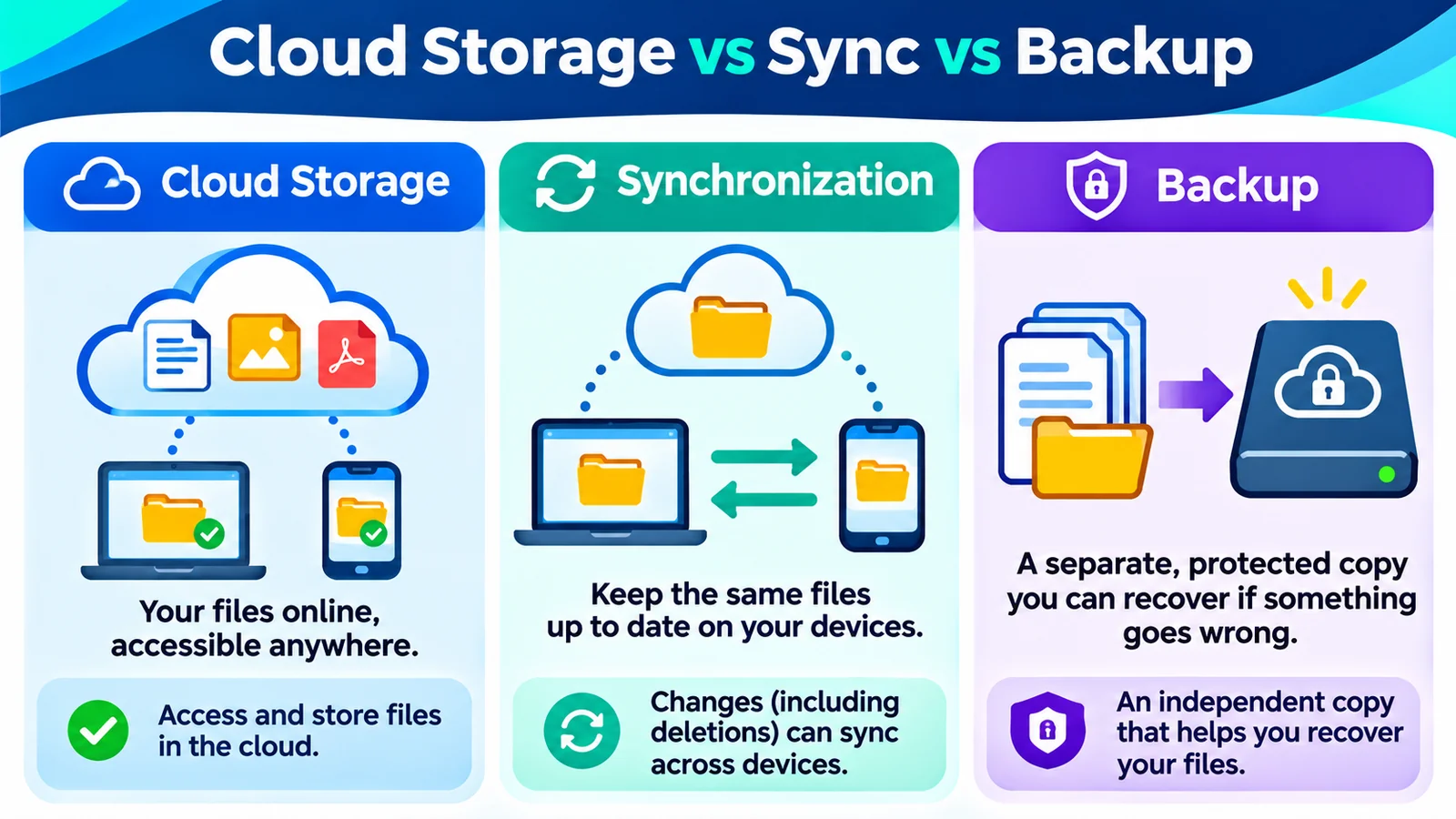
Cloud Storage: Keep Files Online
Cloud storage makes a file available through an online service. For example, you upload workshop-agenda.docx to Google Drive using a browser, and the file is stored in your cloud account.
Synchronization: Keep Changes Consistent
Synchronization helps keep selected files or changes consistent between connected locations.
For example, suppose your laptop has a synchronized OneDrive folder. If you edit a document there, the change can synchronize to the cloud and other devices.
However, synchronization can also propagate unwanted changes. If you delete a synchronized file, the service may remove it from the cloud and other connected locations.
Microsoft discusses this behavior in its OneDrive synchronization guidance.
Backup: Keep a Recoverable Copy
By contrast, a backup is a copy intended to restore information after accidental deletion, corruption, device failure, or another problem.
A separate backup should remain recoverable even if the primary working files are changed or removed.
For example, you could work in OneDrive while keeping an independently protected copy on another suitable storage system. Follow organizational requirements for sensitive files.
Cloud Storage Sync vs Independent Backup
For example, imagine accidentally deleting workshop-notes.docx from a synchronized laptop folder. The deletion may synchronize to the cloud and your other devices.
You might recover the file from Recycle Bin, Trash, or version history, but those tools have limits and can expire.
As a result, a genuinely separate backup provides another recovery path.
| Feature | Primary purpose | Main limitation |
|---|---|---|
| Cloud storage | Store and access files online | Account and service risks remain |
| Synchronization | Keep working locations consistent | Unwanted changes can propagate |
| Version history | Recover previous versions when supported | Availability and retention vary |
| Recycle Bin / Trash | Recover recently deleted items when supported | Deleted items are not retained forever |
| Independent backup | Recover after data loss or corruption | Requires maintenance and restore testing |
Important: Downloading a file to the same device is not always a sufficient independent backup. Protect your copy against relevant risks to the original.
For irreplaceable documents, maintain an appropriate backup and periodically test the recovery process. Synchronization supports convenience; independent backup supports recovery.
Cloud Storage for Beginners: How to Protect Your Files
Cloud storage for beginners includes protecting accounts and files, not just uploading them. Although providers offer security features, everyday decisions still matter.
Secure Your Account With MFA
First, enable multifactor authentication when available. MFA adds verification beyond a password and helps protect against exposed credentials.
In addition, use a unique, strong password and maintain accurate recovery information. Where supported, consider phishing-resistant authentication options.
Review Sharing Permissions Regularly
Next, check whether each person still needs access. Remove unnecessary links or users, and avoid Editor privileges when Viewer access is sufficient.
In particular, shared folders deserve attention because their permissions can apply to many documents.
Recognize Suspicious Sharing Notifications
For example, some phishing attempts imitate cloud file-sharing invitations. A fraudulent message may ask you to open an urgent invoice or sign in through an unfamiliar link.
Instead, open the known cloud storage service independently and check whether the document exists.
For examples and a practical safety checklist, read How to Spot Phishing Emails: 10 Warning Signs & What to Do.
Protect Workplace Documents
Before uploading company files, confirm that the service is approved for the relevant information.
For instance, personal accounts may not meet organizational confidentiality, retention, or contractual requirements. Do not assume a consumer cloud service is suitable for confidential employee information, customer records, or regulated documents.
For the security foundations behind these decisions, explore What Is Cybersecurity?.
Keep an Independent Backup
First, identify files that would be difficult to recreate. Maintain a protected, independently recoverable copy using a suitable method.
Then test whether you can restore the files. A backup is more useful when its recovery process has been verified.
Cloud Storage File Recovery: Deleted or Changed Files
Recovery is another important part of cloud storage for beginners. Services often provide recovery tools, but availability depends on the product, account, administrator settings, and how the item was deleted.
Cloud Storage Recovery: Check Trash or Recycle Bin
In Google Drive:
- Open Drive.
- Go to Trash.
- Locate the file.
- Select Restore, if available.
Google’s standard guidance indicates that files typically remain in Drive Trash for 30 days before permanent deletion.
In OneDrive:
- Open the OneDrive website.
- Select Recycle bin.
- Find the deleted file.
- Select Restore, if available.
However, OneDrive’s recovery conditions differ between personal and work or school accounts. Never assume a file remains recoverable indefinitely.
Restore an Earlier Version When Available
Alternatively, if a document was changed incorrectly, version history may help you return to an earlier state.
For example, someone might accidentally remove important agenda sections. Where supported, open version history, identify the right version, and consider the effects before restoring it.
Restoring an earlier version can overwrite more recent changes; coordinate with collaborators when necessary.
What if the File Cannot Be Recovered?
If the item is no longer in Trash, Recycle Bin, or available version history, check your independent backup.
For company-managed storage, contact your IT administrator promptly. Additional recovery options may depend on service and retention policy.
Consult official guidance on Google Drive deleted-file recovery and OneDrive restoration.
Practical takeaway: Recovery features help, but they cannot guarantee restoration of every deleted file.
Google Drive vs OneDrive: A Beginner Example
Objective: Share a fictional workshop agenda with one colleague who needs to read but not edit it.
Example A — Google Drive
- Create Workshop-Planning.
- Upload workshop-agenda.docx.
- Open Share.
- Enter the colleague’s address.
- Choose Viewer.
- Confirm General access is Restricted.
- Send the invitation and review access.
Example B — Microsoft OneDrive
- Create Workshop-Planning.
- Upload the same document.
- Open Share.
- Choose Specific people, if available.
- Enter the recipient.
- Select Can view.
- Send the invitation and review Manage access.
Both workflows follow the same principle: share with the intended person and grant only the necessary access. Additional permissions may still exist through prior links or folders.
Five Common Cloud Storage Mistakes to Avoid
1. Sharing Files Too Broadly
A public link can reach more people than intended. Better approach: Share with named recipients and restricted access.
2. Confusing Synchronization With Backup
Unwanted edits and deletions may propagate to other devices. Better approach: Maintain an independent, protected backup.
3. Uploading Sensitive Work Files to an Unapproved Account
Personal accounts might not satisfy employer requirements. Better approach: Follow organizational storage and classification policies.
4. Granting Edit Access Unnecessarily
Editors can change shared content. Better approach: Use view-only access when reading is sufficient.
5. Assuming Deleted Files Can Always Be Restored
Recovery features have limits. Better approach: Understand those limits and test a separate backup.
Cloud Storage for Beginners: Your 15-Minute Exercise
Use this cloud storage for beginners exercise to practice with a fictional workshop and non-sensitive sample documents. You can use Google Drive, OneDrive, or another approved service.
| Time | Task | Success check |
|---|---|---|
| 0–3 minutes | Create Workshop-Planning | Folder appears |
| 3–6 minutes | Upload a sample agenda | File opens |
| 6–9 minutes | Rename it and organize a second document | Both are easy to find |
| 9–12 minutes | Inspect sharing; optionally test view-only access with a trusted recipient | You know who has access |
| 12–15 minutes | Retrieve it through another device/browser and identify a separate backup | File accessible and recovery location identified |
Practical Workshop Example
| File | Purpose | Suggested access |
|---|---|---|
| workshop-agenda.docx | Event agenda | Viewer for a trusted participant |
| workshop-notes.docx | Internal notes | Restricted |
| task-tracker.xlsx | Assigned actions | Editor for authorized collaborator |
| event-poster.pdf | Public information | Viewer; broader only when intended |
Importantly, you do not need to share with real people or publish files publicly for this exercise.
If you create a backup, ensure it remains independently recoverable rather than being another synchronized copy.
Six Questions to Test Your Understanding
- Where is my document stored?
- Can I access it through another authorized device?
- Who can currently open it?
- Can any recipient modify or delete it?
- What happens if I delete a synchronized copy?
- How would I restore the working file if it disappeared?
If you can answer these questions, you have a useful foundation for managing cloud files.
Frequently Asked Questions
Is Cloud Storage Free?
For example, some providers offer free storage allowances alongside paid plans. Capacity, features, limits, and pricing can change. Try an existing suitable account before subscribing to additional services, and check the provider’s current terms.
Is Cloud Storage Safe for Personal Files?
Although cloud storage can provide useful security controls, no service eliminates every risk. Account protection, permissions, device security, and behavior matter. Use unique passwords and MFA, avoid suspicious sharing links, and maintain independent backups.
Can I Use Cloud Storage Without the Internet?
For example, some services let you prepare selected documents for offline access. You generally need to configure this while connected. Uploading and synchronizing new changes across devices usually requires connectivity.
What Happens if I Delete a Synced File?
Depending on your service, the deletion may propagate to connected devices and the cloud. Trash, Recycle Bin, or version history might help, but recovery is limited. Maintain an independently recoverable backup for important files.
Can I Share Files Without Giving Edit Access?
Yes. Google Drive and OneDrive provide view-only permissions for supported items. Check all existing links and inherited folder permissions; view-only access does not necessarily prevent screenshots, copying, or downloading.
Is Google Drive Better Than OneDrive for Beginners?
Ultimately, neither is universally better. Google Drive may fit users of Google’s tools; OneDrive may fit Windows and Microsoft 365 users. Consider existing accounts, devices, collaboration needs, and workplace policy.
Conclusion: Start With One Folder and One File
Cloud storage for beginners becomes easier when you focus on a few practical skills.
Start with one folder and one non-sensitive document. Upload it, confirm that it is available, and find it from another device.
Next, practice sharing with the intended recipient and appropriate permissions. As your confidence grows, learn synchronization, version history, and recovery features.
Above all, remember that online access, synchronization, and independent backup are different things. Each plays a role in protecting information.
Start small. Share carefully. Keep recoverable copies of important files.
Build Your Digital Confidence With TechTeamSynergy Weekly
Want practical guides on digital skills, cybersecurity, AI, and everyday technology?
Explore TechTeamSynergy Weekly for beginner-friendly tutorials and insights.
References and Further Reading
- Google Drive Help — Upload Files and Folders. Uploading documents and folders.
- Google Drive Help — Organize Your Files. Folder and file organization.
- Google Drive Help — Share and Manage Access. Roles, restricted sharing, and inherited permissions.
- Microsoft Support — Upload Photos and Files to OneDrive. OneDrive uploads.
- Microsoft Support — Share Files and Folders in OneDrive. Links and permissions.
- Microsoft Support — Sync Your Computer’s Files and Folders With OneDrive. Synchronization behavior.
- Google Drive Help — Recover a Deleted File. Recovery from Trash.
- Microsoft Support — Restore Files Deleted From OneDrive. Recovery options.
Editorial note: Workshop scenarios and file names are fictional. Product interfaces, account features, permissions and recovery periods may change. This guide provides general education and does not replace organizational security, privacy, or records-management policies.
Continue Learning
Keep building your digital confidence with these related TechTeamSynergy guides on cloud files, online safety and everyday productivity.