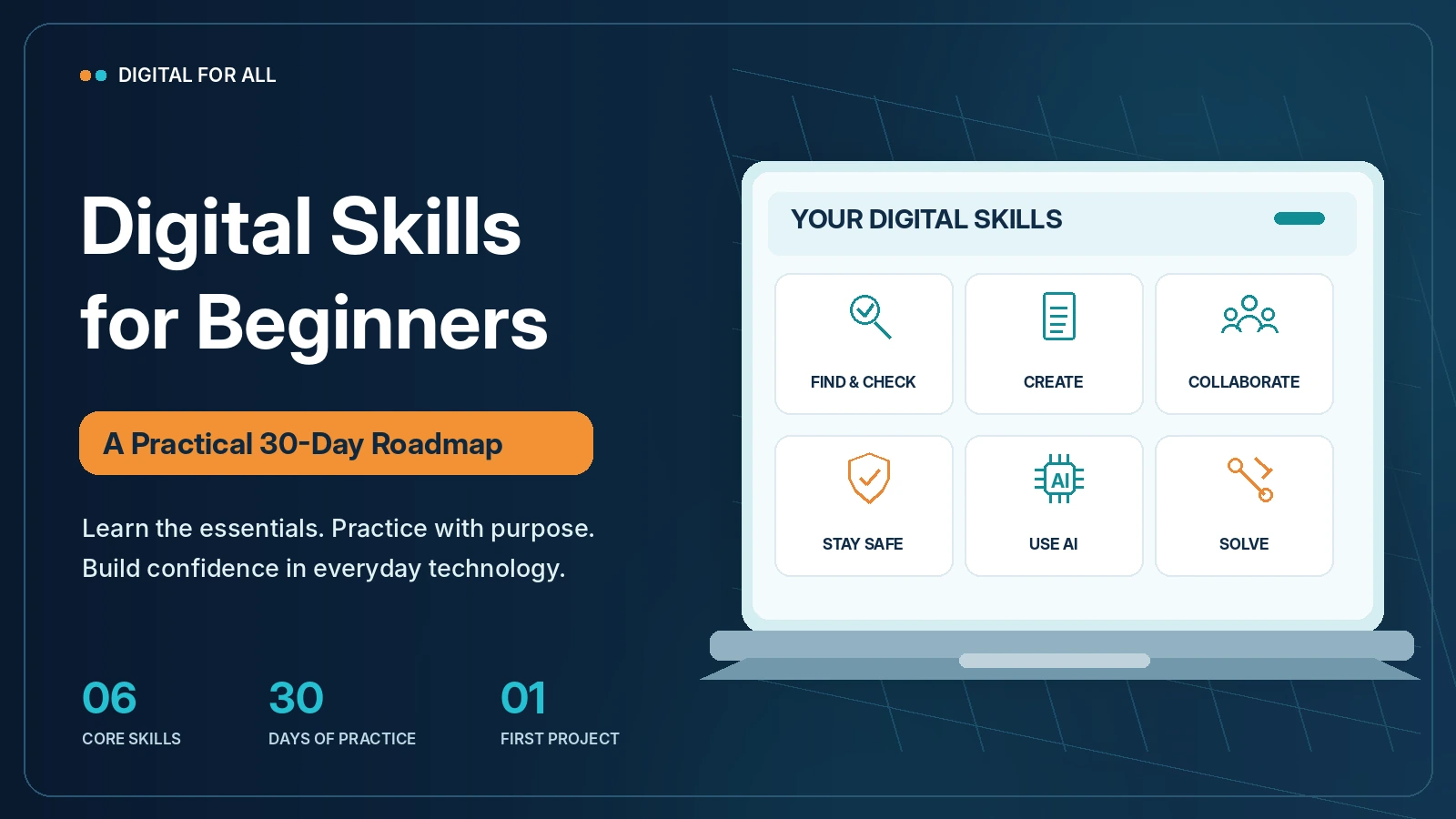
Digital skills for beginners made practical: learn six essential abilities, complete everyday exercises, and follow a clear 30-day roadmap.
Imagine you need to organize an online meeting, share a document, check whether an email is safe, or use artificial intelligence to improve a message.
Although these are everyday tasks, they can be challenging when you are unfamiliar with digital tools.
The good news? You do not need to be a technology expert to use technology confidently.
Digital skills for beginners are about learning how to solve real problems—not memorizing technical terms or mastering every application.
In this practical guide, you will discover six essential digital skills, assess your starting level, and follow a structured 30-day learning roadmap.
Whether you are a non-technical professional, a small business owner, a career changer, or simply curious about technology, you can start with the basics and progress at your own pace.
By the end, you will have completed practical exercises and a small digital project that demonstrates what you have learned.
Digital Skills at a Glance
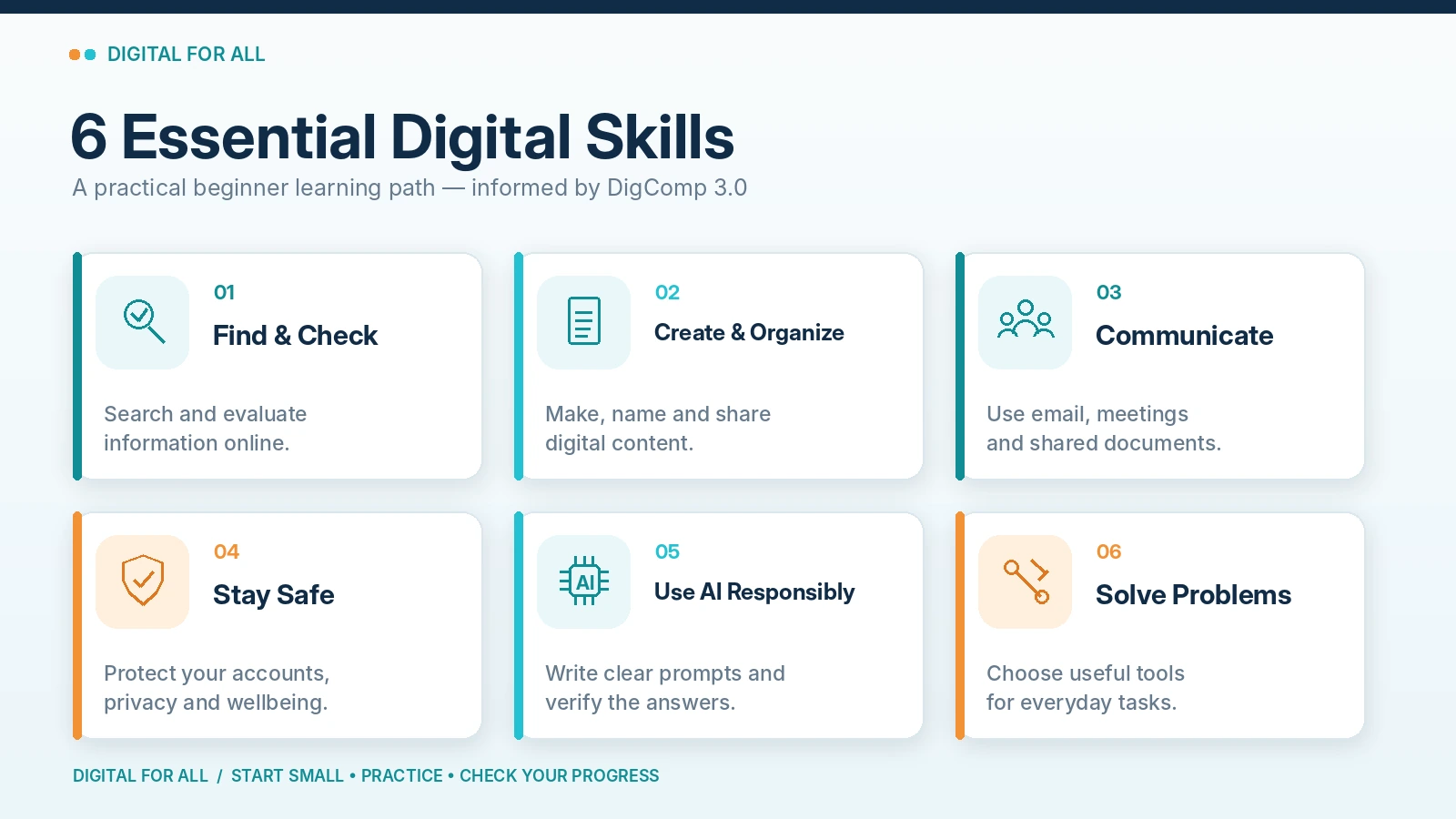
Digital confidence begins with a few practical abilities you can use in different situations.
| Essential skill | What you will learn | Practical example |
|---|---|---|
| Find and Check Online Information | Search, compare, and verify information | Check whether an online claim is reliable |
| Create, Organize and Share Digital Content | Work with documents, files, and cloud storage | Create a document and share it safely |
| Communicate and Collaborate Online | Use email, meetings, calendars, and shared files | Organize a small team meeting |
| Stay Safe and Protect Your Digital Wellbeing | Recognize online risks and protect accounts | Identify phishing and enable MFA |
| Use AI Responsibly | Give clear instructions and verify AI results | Improve a professional email |
| Solve Everyday Problems With Digital Tools | Choose useful tools for practical tasks | Create a simple expense tracker |
Your learning commitment: Aim for approximately 15–25 minutes of focused practice each day. Some exercises may require additional time, depending on your experience.
You can complete many activities on a smartphone, although a computer or tablet with a keyboard will make certain document and spreadsheet exercises easier.
What Are Digital Skills?
Digital skills are the knowledge and practical abilities needed to use digital technologies effectively, safely, critically, and responsibly.
In practice, they include much more than operating a smartphone or browsing websites.
For example, imagine you are planning a community event. You might need to research a venue, create a budget, communicate with participants, share documents, and check that important information is accurate.
Each activity requires a combination of digital skills.
How This Guide Relates to DigComp 3.0
The European Commission’s DigComp 3.0 framework provides a recognized reference for understanding digital competence.
It organizes competence into five official areas:
- Information search, evaluation and management.
- Communication and collaboration.
- Content creation.
- Safety, wellbeing and responsible use.
- Problem identification and solving.
Importantly, AI competence is integrated across the framework rather than treated as a separate official sixth area.
The six skills in this article are an original, beginner-friendly learning path informed by DigComp 3.0. They are not the framework’s official competence categories.
We give responsible AI use its own practical section because it is increasingly relevant to everyday learning and work.
Digital Skills for Beginners: 6 Essential Abilities
1. Find and Check Online Information
Finding information online is easy. However, knowing whether to trust it is more difficult.
Search engines, websites, social media, and AI assistants provide access to enormous amounts of information. However, not everything you find is accurate, current, complete, or impartial.
Before relying on online information, ask:
- Who published it?
- Is the source credible for this particular topic?
- When was the information published or updated?
- Do other reliable sources support the same claim?
- Is the content providing information or trying to sell something?
Everyday example
You want to choose an online tool for managing your small business.
Instead of choosing the first sponsored result, you compare the provider’s official documentation, available features, privacy conditions, and independent explanations.
Your first exercise: Choose a topic you know well, find three different sources, and write down one fact they agree on and one point requiring additional verification.
Success criterion: You can explain why you consider one source more reliable than another.
2. Create, Organize and Share Digital Content
Beyond finding information, creating useful digital content is a foundational skill.
Fortunately, you do not need advanced design or programming knowledge. Start with documents, simple spreadsheets, folders, and basic file sharing.
Learn how to:
- Create and edit a document.
- Give files meaningful names.
- Organize folders logically.
- Find downloaded documents.
- Save and retrieve files.
- Understand basic sharing permissions.
- Distinguish synchronization from backup.
For example, instead of keeping files named \Document1\, \Final2\, and \NewVersion\, use names that describe their contents.
A file such as \Event_Budget_2026-11.xlsx\ is easier to identify than \Book1.xlsx\.
A simple folder structure might be:
Digital Learning/
├── Documents/
├── Spreadsheets/
├── Projects/
└── Archive/
Although cloud storage can make files available across devices, synchronization is not automatically a separate backup. As a result, a synchronized deletion may affect multiple devices.
Your first exercise: Create a fictional meeting agenda, save it in a clearly named folder, and practice setting view-only access without exposing personal information.
Success criterion: You can find, edit, organize, and safely share a document.
3. Communicate and Collaborate Online
In addition to managing files, digital communication is an important skill for work and everyday life.
It includes email, messaging, shared calendars, video meetings, and collaborative documents.
However, the goal is not to master every platform. Instead, select an appropriate way to communicate.
| Situation | Suitable digital tool |
|---|---|
| Formal request | |
| Quick clarification | Messaging |
| Group discussion | Video meeting |
| Shared document review | Collaborative document |
| Appointment coordination | Digital calendar |
| Tracking responsibilities | Simple task list |
Good digital communication also involves clear writing, respectful behavior, appropriate response times, and understanding who should have access to shared information.
Your first exercise: Prepare a fictional meeting invitation with a title, agenda, date, and expected outcome. Keep it as a draft or send it only to a willing participant.
Success criterion: You can prepare and coordinate a small activity without losing important information.
4. Stay Safe and Protect Your Digital Wellbeing
You do not need to be a cybersecurity specialist to protect yourself online.
Begin with a few important habits.
Use strong, unique passwords. A reputable password manager can help you create and store unique passwords.
Enable multifactor authentication (MFA). This adds protection beyond a password. Choose phishing-resistant methods when available and understand your recovery options before changing security settings.
Keep software updated. Security updates help address known vulnerabilities in devices, browsers, and applications.
Recognize suspicious messages. Be cautious when someone unexpectedly requests passwords, payments, account verification, or urgent action.
These practices are consistent with CISA’s Secure Our World guidance.
Even so, a phishing message can look convincing, use a familiar brand, and contain perfectly written text. Therefore, do not assume that professional appearance means a message is genuine.
If a message appears suspicious, contact the organization through a known website or phone number rather than using details from the message.
The FTC phishing guidance explains common warning signs and practical protective actions.
In addition, digital wellbeing matters. Manage unnecessary notifications, take screen breaks, and avoid feeling that every message requires an immediate response.
For a deeper explanation of digital threats, read What Is Cybersecurity?.
Your first exercise: Review the security settings of an account you own. Check whether MFA is enabled and make sure you understand the account’s recovery options.
Success criterion: You can identify common online risks and take basic protective actions independently.
5. Use AI Responsibly
Beyond familiar digital tools, artificial intelligence can assist with everyday tasks such as drafting messages, summarizing notes, brainstorming ideas, and explaining unfamiliar subjects.
However, AI-generated information is not automatically correct.
A useful response may still contain invented details, incorrect dates, or misleading conclusions.
For beginners, responsible AI use requires three habits.
Give clear instructions. Explain what you need, provide relevant context, and specify the expected format.
Protect sensitive information. Do not share confidential business documents, customer details, passwords, or personal records with unauthorized AI services.
Verify important results. Review content carefully and check factual claims using reliable information.
For example, you could ask an AI assistant to improve the structure of a fictional email. Then review the proposed text before using it.
The NIST Generative AI Profile provides a broader reference for understanding and managing generative AI risks.
If you want to understand the underlying concepts, explore What Is Artificial Intelligence?.
Your first exercise: Use an AI assistant to rewrite a fictional three-sentence email in a professional tone. Check whether it preserved the original meaning.
Success criterion: You can obtain a useful AI-assisted result while retaining responsibility for accuracy, privacy, and final decisions.
6. Solve Everyday Problems With Digital Tools
Ultimately, digital skills become valuable when they help you solve problems.
Imagine you manage expenses for a small event.
You currently write each payment on paper, making it difficult to calculate the total.
In this situation, a simple spreadsheet can help you organize categories, amounts, and totals.
Fortunately, you do not need advanced formulas or a complicated software subscription.
Start by identifying:
- The problem you want to solve.
- The information you need.
- The simplest suitable tool.
- The result you expect.
- How you will check whether the solution works.
For spreadsheets, our Excel for Beginners guide provides a practical starting point.
Your first exercise: Choose one repetitive task and identify a digital tool that could make it simpler. Test the tool using fictional or non-sensitive information.
Success criterion: You can complete a useful task and explain why the chosen tool helps.
Digital Skills for Beginners: Self-Assessment
Before starting the roadmap, assess what you can already do.
This is a simple, task-based self-assessment—not a formal exam or recognized certification.
Use the following scoring system:
| Score | Meaning |
|---|---|
| 0 | I cannot complete the task yet, even with basic instructions. |
| 1 | I can complete the task with guidance or a step-by-step example. |
| 2 | I can complete the task independently and check my work. |
Now complete the six tasks below.
| Skill | Task to demonstrate | Score |
|---|---|---|
| Information | Compare two online sources and explain which is more reliable | 0–2 |
| Digital content | Create, name, organize, and retrieve a document | 0–2 |
| Communication | Prepare a meeting invitation with an agenda | 0–2 |
| Safety | Identify warning signs in a fictional phishing message | 0–2 |
| Responsible AI | Draft an AI prompt and verify the response | 0–2 |
| Problem-solving | Complete a simple task using a digital tool | 0–2 |
| Total | Maximum score | 12 |
Write down your starting score and note which tasks required help.
However, a score of 12 does not mean you have mastered digital technology. Instead, it means you can complete these six beginner tasks independently.
You will repeat the same exercises on Day 30.
Digital Skills for Beginners: Your 30-Day Roadmap
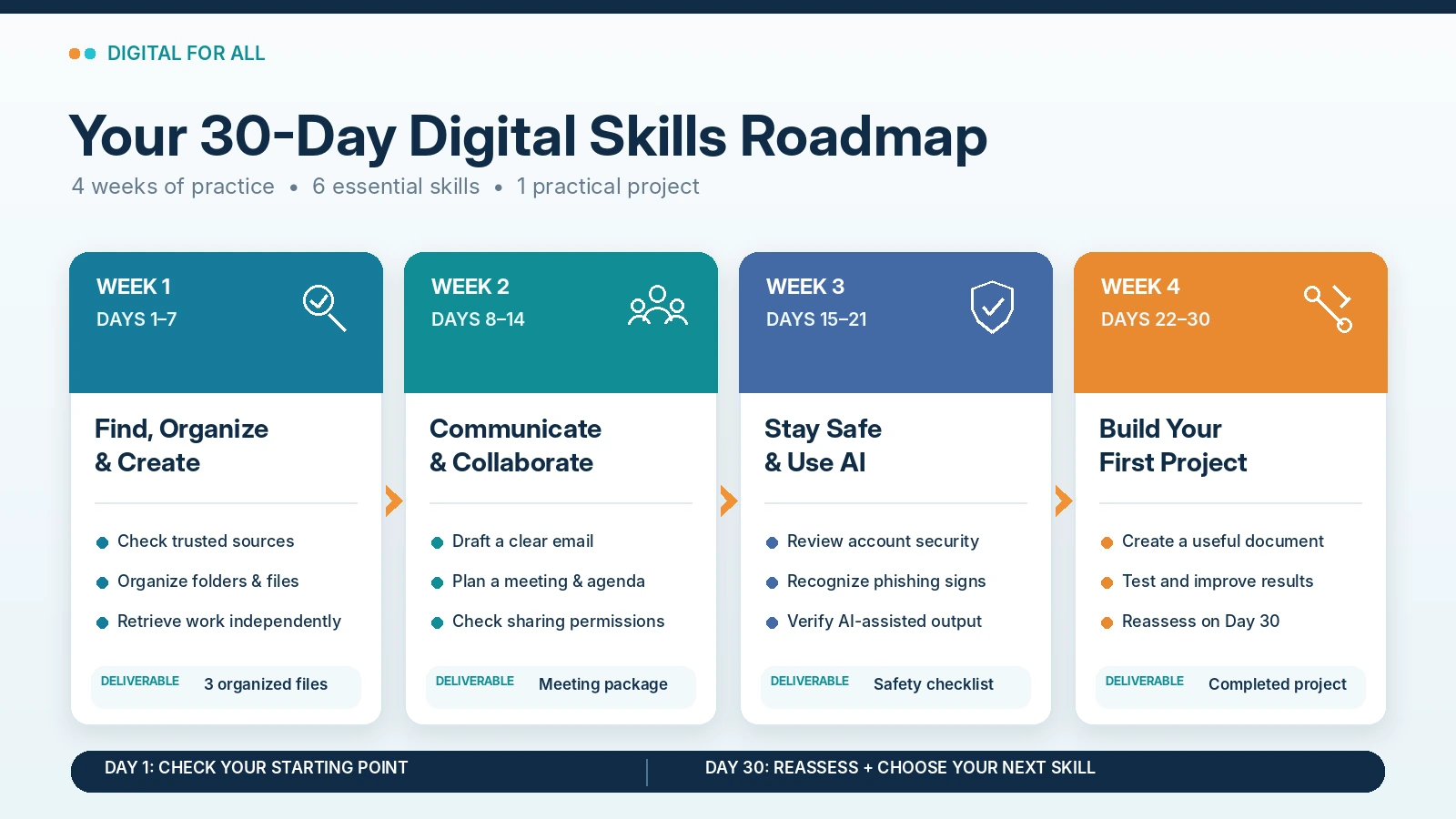
Next, the four-week plan turns basic digital knowledge into practical experience.
Aim for approximately 15–25 minutes each day, allowing additional time whenever necessary.
You can also adapt activities to the tools you already have. For example, you may use a document editor, a spreadsheet application, a cloud storage service, and a calendar without adopting a completely new software ecosystem.
Whenever possible, use fictional information for exercises unless you have a clear reason and authorization to use real data.
Week 1 — Find, Organize and Create (Days 1–7)
Objective: Learn to navigate information and manage your first digital documents.
| Day | Exercise | Evidence of completion |
|---|---|---|
| 1 | Complete the six-task self-assessment. Record the tasks you can finish without assistance. | Baseline score and learning notes |
| 2 | Research a familiar question using three sources. Compare their authors, dates, and evidence. | Short source-comparison note |
| 3 | Practice opening browser tabs, saving bookmarks, and locating a downloaded file. | Organized bookmark folder |
| 4 | Create a \Digital Learning\ folder with subfolders for documents, projects, and archives. | Folder structure |
| 5 | Create a short document about a fictional event. Add a title, headings, and a short checklist. | Formatted document |
| 6 | Rename three sample files, save them in appropriate folders, and create a separate backup copy of one. | Organized files and backup |
| 7 | Close the files and retrieve them again. Explain where each is stored. | Week 1 independent check |
Week 1 checkpoint — What you should be able to do
By the end of Week 1, create a short document, name it clearly, store it in an appropriate folder, and retrieve it without following a tutorial.
Weekly deliverable: One organized digital workspace containing at least three sample files.
Week 2 — Communicate and Collaborate (Days 8–14)
Objective: Practice everyday digital communication and basic document sharing.
| Day | Exercise | Evidence of completion |
|---|---|---|
| 8 | Write a professional email draft with a meaningful subject, greeting, purpose, and next step. | Draft email |
| 9 | Create a fictional calendar appointment with a title, date, duration, and short agenda. | Calendar event |
| 10 | Test your microphone, camera, and meeting controls without joining an unfamiliar public meeting. | Meeting-readiness checklist |
| 11 | Create a meeting-notes document with sections for decisions, actions, and follow-up. | Structured notes |
| 12 | Practice view-only file sharing with a test document. Check access settings before sharing. | Verified permissions |
| 13 | Create a task list with three fictional tasks, owners, and deadlines. | Small action tracker |
| 14 | Organize the week’s work and independently repeat the email, calendar, and file-access tasks. | Week 2 review |
Week 2 checkpoint — What you should be able to do
By the end of Week 2, prepare a meeting, organize notes, track simple actions, and share a document with the intended level of access.
Weekly deliverable: A fictional meeting package containing an invitation, agenda, notes, and task list.
Week 3 — Stay Safe and Use AI Responsibly (Days 15–21)
Objective: Develop foundational security habits and learn how to review AI-assisted work.
| Day | Exercise | Evidence of completion |
|---|---|---|
| 15 | Review device updates, screen-lock settings, and the security guidance available for your accounts. | Basic security checklist |
| 16 | Review MFA and recovery options for an account you control. Enable MFA if appropriate, after confirming recovery access. | Security review completed |
| 17 | Examine a fictional phishing message. Identify unexpected requests, suspicious context, and verification steps. | Three or more warning signs |
| 18 | Practice verifying an unexpected request using a trusted independent source. Do not interact with real suspicious links. | Verification procedure |
| 19 | Use an AI assistant to improve a fictional email. Compare the original and suggested versions. | Edited email |
| 20 | Ask AI to explain an unfamiliar digital term. Compare the explanation with a reliable reference. | Fact-checking notes |
| 21 | Review AI privacy practices and repeat the security and AI exercises without step-by-step instructions. | Personal safety checklist |
Week 3 checkpoint — What you should be able to do
By the end of Week 3, recognize suspicious requests, understand basic account protection, write a simple AI prompt, and verify the resulting information.
Weekly deliverable: A personal digital safety checklist and a reviewed AI-assisted document.
Week 4 — Complete Your First Digital Project (Days 22–30)
Objective: Combine your new skills into a practical project.
Choose one of these beginner-friendly examples: plan a fictional community meeting, create a learning tracker, or build a small expense-planning document.
| Day | Exercise | Evidence of completion |
|---|---|---|
| 22 | Choose your project and write one sentence describing what it should achieve. | Project objective |
| 23 | Identify the information, files, and digital tools required. Keep the scope manageable. | Project checklist |
| 24 | Create the project folder and prepare a short document or task plan. | Organized project workspace |
| 25 | Build the main project output, such as a meeting plan, learning tracker, or simple expense table. | Working first version |
| 26 | Use AI optionally to suggest improvements, relying only on fictional or non-sensitive information. | Reviewed suggestions |
| 27 | Revise the project. Verify dates, calculations, instructions, and factual claims. | Corrected version |
| 28 | Test file access and sharing permissions, using a trusted collaborator or a controlled test. | Access test |
| 29 | Check whether your output solves the original problem. Record what worked and what remains difficult. | Three lessons learned |
| 30 | Repeat the six-task self-assessment and compare results with Day 1. Select one skill to develop next. | Final score and next learning goal |
Week 4 checkpoint — What you should be able to do
Complete a small digital project, organize its supporting files, verify the result, and explain which skills you used.
Final deliverable: One completed project and a personal learning plan for the next 30 days.
Two Practical Digital Skills Examples
To see how these skills work together, try the following demonstrations.
Example 1 — Organize and Share Your First Digital Document
Scenario: You are helping organize a fictional neighborhood meeting. You need to prepare an agenda and make it available for review.
Goal: Create, organize, and share a document without exposing information unnecessarily.
Step 1: Create the document
First, open a document editor of your choice.
Give your document a clear title:
\Neighborhood_Meeting_Agenda_2026-11\
Add the following content:
Neighborhood Meeting Agenda
Date: November 18, 2026
Duration: 30 minutes
Agenda:
- Welcome and introductions — 5 minutes
- Community priorities — 10 minutes
- Proposed activities — 10 minutes
- Next steps — 5 minutes
Because this is a fictional example, replace these details only when working on an actual authorized activity.
Step 2: Organize the file
Save the document in:
\Digital Learning / Projects / Neighborhood Meeting\
Check that the document has a recognizable filename and can be opened again.
Step 3: Review sharing settings
Next, open the document’s sharing options.
In particular, look for settings controlling who can access the document and whether those people can view, comment, or edit.
For a beginner exercise, use view-only access.
However, avoid making the document publicly accessible to anyone with a link unless that is intentionally required.
Step 4: Test access
Use a controlled test or a trusted person who has agreed to help.
Then, confirm that the document opens and that the permission level is correct.
If the exercise involved temporary sharing, revoke the access afterward.
Check your work
You have completed the exercise successfully if you can create the document, find it again, identify its location, and explain who has access to it.
Skills practiced: digital content creation, file management, collaboration, and security.
Example 2 — Use AI to Improve a Professional Email
Scenario: You want to send a polite reminder about a fictional meeting.
Goal: Improve clarity and tone while keeping control over the information.
Step 1: Start with a simple draft
Your original message might be:
Hi Sam,
Please send the slides. We need them Friday for the meeting.
Thanks.
Although the message communicates a basic request, it could be clearer and more professional.
Step 2: Write a structured AI prompt
Use this fictional prompt:
Act as a professional writing assistant.
Rewrite the email below in a friendly, concise business tone.
Keep it under 100 words.
Include a clear subject line.
Preserve the request and deadline.
Do not invent names, meeting times, or additional commitments.
Original email: “Hi Sam, Please send the slides. We need them Friday for the meeting. Thanks.”
This way, the prompt explains the task, context, constraints, and expected output.
Step 3: Review the proposed result
An acceptable draft might be:
Subject: Slides Needed by Friday
Hi Sam,
Could you please send the slides by Friday so we can prepare for the meeting?
Thanks for your help.
Best regards,
[Your Name]
Remember, this is an illustrative example of a suitable result, not a guarantee of what a particular AI service will generate.
Step 4: Perform a human review
Before sending, ask:
- Is the recipient correct?
- Is the Friday deadline accurate?
- Is the tone appropriate?
- Did the AI invent any information?
- Does the message clearly communicate the expected action?
If Friday is ambiguous, replace it with a confirmed calendar date.
Step 5: Finalize the message
After reviewing the draft, make any necessary edits yourself. Then, send it only if the information is accurate and you have a legitimate reason to contact the recipient.
Check your work
You have completed the exercise if you can explain what the AI improved, identify any information that needs verification, and produce a final message you are comfortable sending.
Skills practiced: digital communication, responsible AI use, critical thinking, and problem-solving.
For more advanced prompting techniques, see AI Prompting: How to Write Better Prompts.
Common Digital Learning Mistakes
Trying to Learn Too Many Applications
Installing numerous applications is not the same as developing skills.
Instead, choose a small set of tools that meets your immediate needs. Then, become comfortable completing real tasks before adding alternatives.
Watching Tutorials Without Practicing
Although a tutorial can show you what to do, practice helps you perform the task independently.
After learning a concept, create something useful—even a small document or checklist.
Google’s Applied Digital Skills program offers project-based learning activities that demonstrate this approach.
Ignoring Privacy and Account Security
Although convenience is important, it should not override safety.
Before sharing a file, uploading information, or connecting an application, consider what information could become accessible and to whom.
Trusting AI Output Without Verification
Even when AI produces convincing explanations, they can still contain errors.
Therefore, use AI as an assistant, not as a substitute for judgment. In particular, review important facts, particularly when the result could affect work, finances, safety, or other people.
Focusing on Tools Instead of Outcomes
Ultimately, learning a new application is useful when it helps you achieve something.
Instead of asking, “How many tools have I learned?”, ask:
“What can I now accomplish independently that I could not do before?”
Measure Your Progress After 30 Days
Finally, return to the six-task assessment you completed on Day 1.
Then, repeat the same tasks under comparable conditions, using the same scoring system.
| Skill | Day 1 | Day 30 | Evidence of progress |
|---|---|---|---|
| Online information | ___ | ___ | Can compare sources |
| Digital content | ___ | ___ | Can create and retrieve files |
| Communication | ___ | ___ | Can prepare a meeting |
| Digital safety | ___ | ___ | Can recognize suspicious requests |
| Responsible AI | ___ | ___ | Can prompt and verify |
| Problem-solving | ___ | ___ | Can complete a useful task |
| Total | /12 | /12 | Personal learning progress |
However, your progress is not defined by the score alone.
For example, consider whether you now need less assistance, feel more capable of checking your work, and understand the reasons behind the steps you take.
You might improve from 4/12 to 8/12, or from 8/12 to 10/12. These are illustrative examples, not predicted learning outcomes.
Ultimately, the most valuable result is the ability to complete useful tasks reliably and safely.
From there, choose your next learning goal based on the skill that remains most relevant or difficult.
Digital Skills for Beginners: Final Checklist
Use this checklist to review your practical progress.
- [ ] I can compare online information and identify trustworthy sources.
- [ ] I can create and organize digital documents.
- [ ] I can save, retrieve, and back up important files.
- [ ] I understand basic cloud-sharing permissions.
- [ ] I can write a clear professional email.
- [ ] I can prepare a calendar invitation and meeting agenda.
- [ ] I understand strong passwords and multifactor authentication.
- [ ] I can recognize suspicious online requests.
- [ ] I can use an AI assistant for a simple task.
- [ ] I verify important AI-generated information.
- [ ] I can choose a digital tool for a specific problem.
- [ ] I have completed one practical digital project.
If some items remain unchecked, return to the corresponding exercise in the roadmap.
Digital learning is a continuing process, and practicing a few useful skills consistently is often more valuable than rushing through dozens of tools.
Frequently Asked Questions
What are the most important digital skills for beginners?
Start with online information literacy, digital content creation, file organization, communication, account security, responsible AI use, and basic problem-solving. These skills apply to many everyday and professional situations.
Can I learn digital skills without a technical background?
Yes. In fact, foundational digital skills generally do not require coding, networking knowledge, or formal technical education. Clear instructions and repeated practical exercises can help you become more independent.
How long does it take to learn basic digital skills?
Because learning time depends on your previous experience, tools, and goals, this 30-day roadmap provides a structured beginning rather than a guarantee of proficiency.
Do I need expensive software?
Not necessarily. For example, many beginner tasks can be completed with tools already available on your device or suitable free applications. Check current functionality, account requirements, privacy terms, and usage restrictions before choosing a service.
Should I learn AI before other digital skills?
Although AI can be introduced early, information literacy, privacy awareness, file management, and critical thinking remain essential. These foundations help you recognize when an AI response is useful, incomplete, or incorrect.
What should I learn after completing the roadmap?
Choose a direction relevant to your goals. You might continue with Excel, document collaboration, AI productivity, online safety, or introductory programming. For deeper spreadsheet skills, explore How to Use Excel: Practical Skills for Everyday Work.
Conclusion: Build Confidence One Skill at a Time
Ultimately, you do not need to know every application or understand every technical concept to become digitally confident.
Instead, start by learning how to find trustworthy information, create and manage digital content, communicate clearly, stay safe, use AI responsibly, and solve practical problems.
To practice these skills, the 30-day roadmap gives you an achievable structure for learning and demonstrating your progress.
For example, your first project does not need to be complicated.
It could be an organized folder, a well-written email, a shared agenda, or a simple spreadsheet.
Above all, the important step is turning what you learn into something you can actually do.
Choose one exercise from Day 1 and get started.
Keep Building Your Digital Confidence
Even after Day 30, your roadmap is only a starting point, not the end of your learning journey.
Get practical insights into AI, digital productivity, cybersecurity, teamwork, and technology through TechTeamSynergy Weekly.
Explore TechTeamSynergy Weekly
References and Further Resources
The following resources informed the approach and practical recommendations in this guide:
- European Commission — DigComp 3.0: European Digital Competence Framework, including AI competence integrated across its five areas.
- CISA — Secure Our World: Practical guidance on passwords, multifactor authentication, phishing, and software updates.
- FTC — How to Recognize and Avoid Phishing Scams: Consumer-oriented guidance for identifying and responding to phishing attempts.
- NIST — Generative AI Profile: A reference for understanding and managing generative AI risks.
- Google — Applied Digital Skills: Project-based learning activities for practical digital skills.
Editorial note: This roadmap is an original educational adaptation. It is not an official DigComp assessment, a formal certification, or a guarantee of proficiency after 30 days.
Continue Learning
Continue developing your digital skills with these related TechTeamSynergy guides on AI, online safety and everyday productivity.